---
title: Adding and configuring stages
description: This article covers adding and configuring stages in Renewal Hub
---
[Skip to content](https://knowledge.refocusai.com/adding-and-configuring-stages#main-content)
[More support](https://knowledge.refocusai.com/kb-tickets/new?hsLang=en) [Customer portal](https://knowledge.refocusai.com/support?hsLang=en)

- [ReFocus AI Website](https://refocusai.com)
- [Blog](https://blog.refocusai.com)
Open main navigation
Close main navigation
- [ReFocus AI Website](https://refocusai.com)
- [Blog](https://blog.refocusai.com)
- [More support](https://knowledge.refocusai.com/kb-tickets/new)
- [Customer portal](https://knowledge.refocusai.com/support)
How can we help you?
- There are no suggestions because the search field is empty.
1. [Knowledge Center](https://knowledge.refocusai.com/?hsLang=en)
2. [Onboarding](https://knowledge.refocusai.com/onboarding?hsLang=en)
3. [Renewal Hub](https://knowledge.refocusai.com/onboarding?hsLang=en#renewal-hub)
July 17, 2026
# Adding and configuring stages
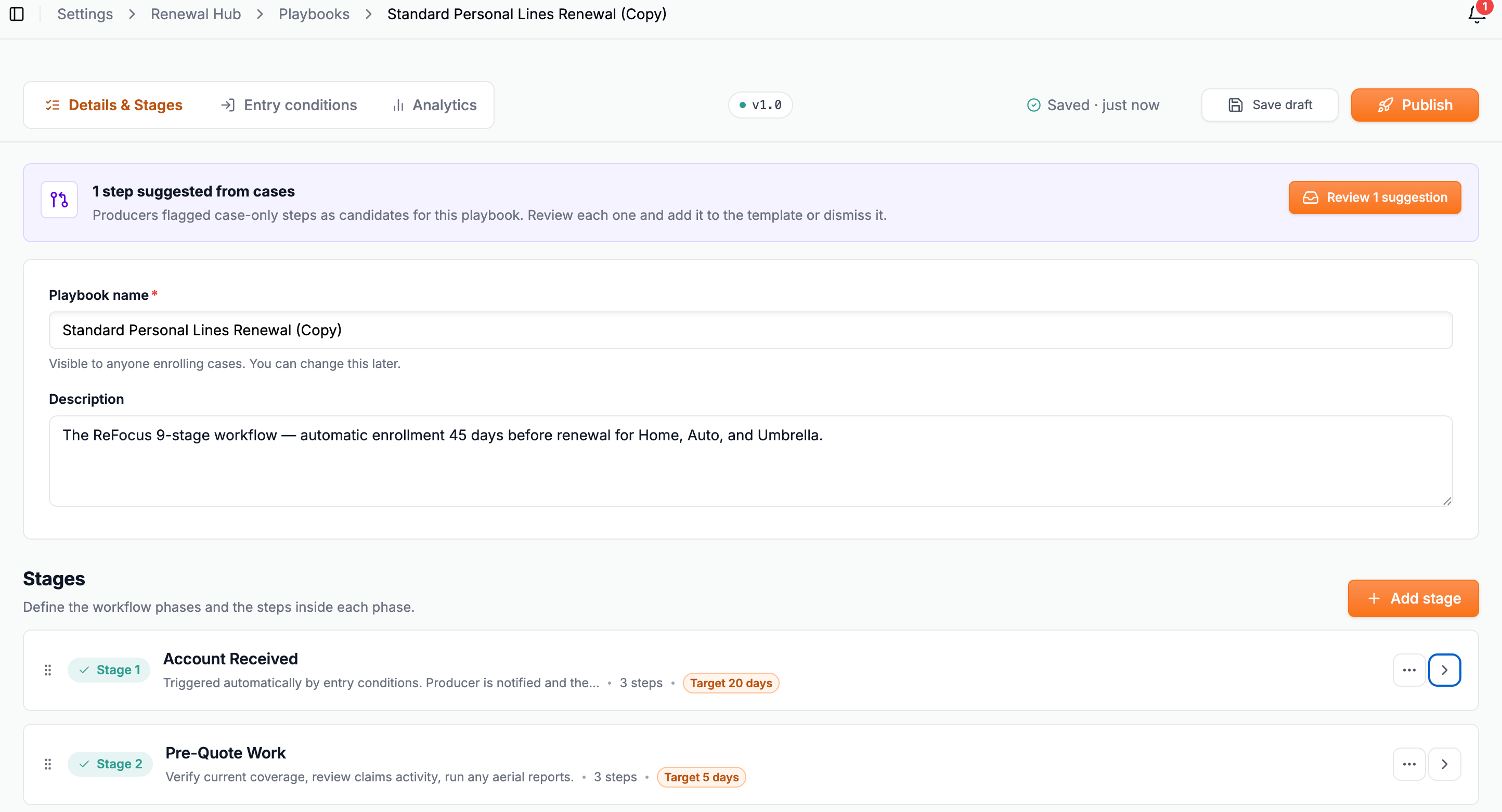
## Stages define the phases of your renewal workflow and appear as columns on the Kanban board. Each playbook must have at least one stage before you can add steps or publish. This article covers adding stages, renaming them, reordering them, and configuring entry conditions that determine which accounts are automatically enrolled into the playbook.
**Add a stage**
1. Open the playbook in the editor. From Renewal Hub - Playbook Settings, select Playbooks, then select the playbook name.
2. On the editor canvas, select Add stage.
3. Enter a stage name. Stage names appear as column headers on the Kanban board, so keep them short and clear. Examples: Pre-Quote Work, Market Review, Client Presentation.
4. Select Save.
Repeat for each stage in your workflow. Stages are added in the order you create them.
**Reorder stages**
1. In the editor canvas, drag a stage up or down to change its position.
2. Release to drop it in the new position.
**Remove a stage**
1. Select the ellipsis on the right side of the stage section on the canvas.
2. Select delete stage.
**Note:** Removing a stage also removes all steps within it. This action cannot be undone on a draft.
**Configure entry conditions**
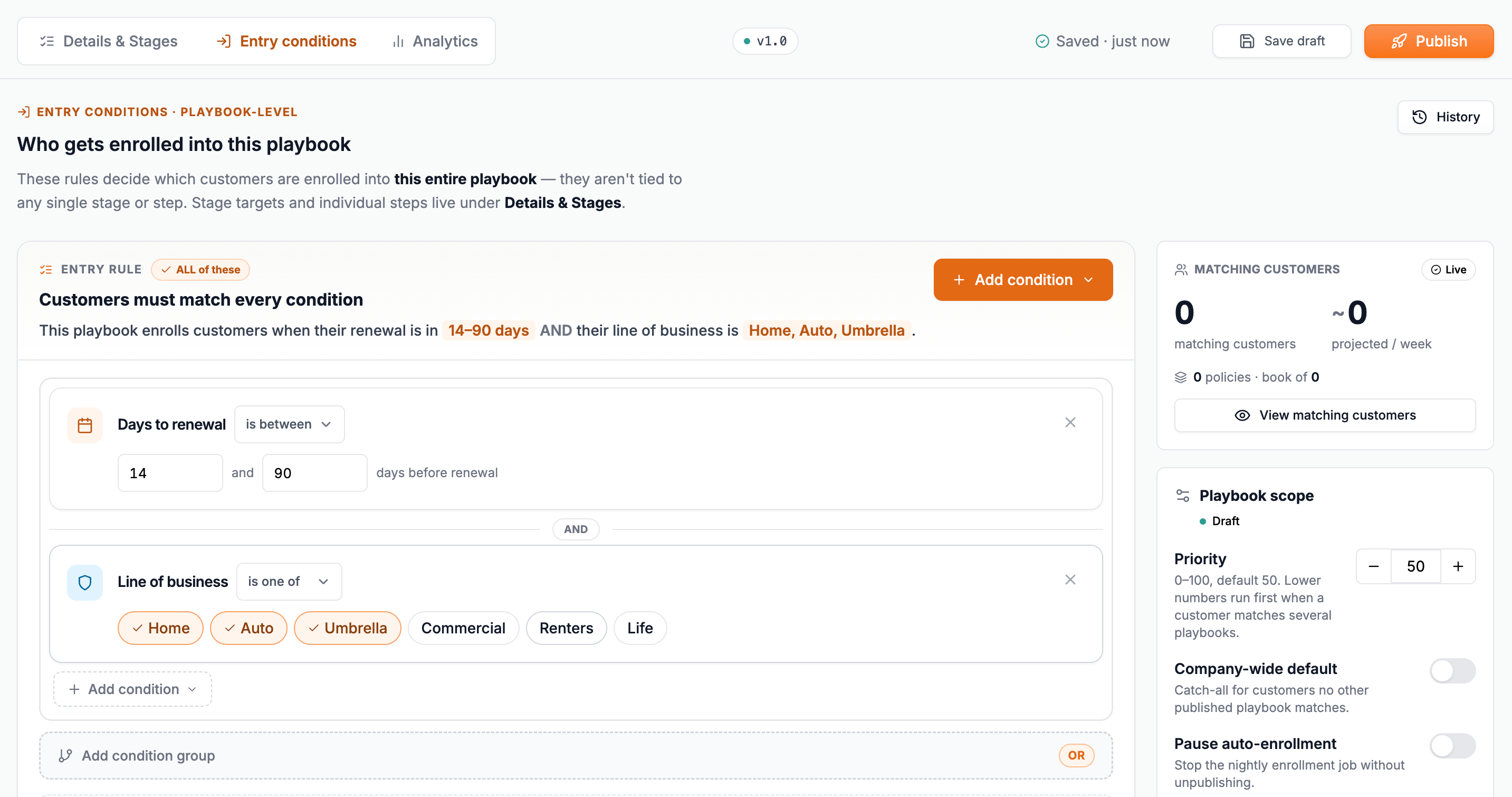
Entry conditions determine which customer accounts are automatically enrolled into this playbook. When an account meets all configured conditions, a case is opened and assigned to a producer.
1. In the playbook editor, select Entry conditions at the top of the canvas.
2. Select Add condition.
3. Choose a condition type from the list. Available conditions include churn risk level, premium increase amount, premium increase percent, days until renewal, policy type, and customer annual premium.
4. Set the condition value.
5. Select Save.
Multiple conditions combine with AND, meaning an account must meet all conditions to be enrolled. If you need different rules for different account types, create a separate playbook for each.
**Note:** Manual enrollment is always available regardless of entry conditions. Any agent or manager can enroll a customer into a playbook directly from the customer page.
- [Onboarding](https://knowledge.refocusai.com/onboarding?hsLang=en#main-content)
- [Start Here](https://knowledge.refocusai.com/onboarding?hsLang=en#start-here)
- [Set up Carrier Access & MFA Forwarding](https://knowledge.refocusai.com/onboarding?hsLang=en#set-up-carrier-access-mfa-forwarding)
- [Account Monitoring](https://knowledge.refocusai.com/onboarding?hsLang=en#account-monitoring)
- [Remarketing](https://knowledge.refocusai.com/onboarding?hsLang=en#remarketing)
- [Data Enrichment](https://knowledge.refocusai.com/onboarding?hsLang=en#data-enrichment)
- [Risk Engineering](https://knowledge.refocusai.com/onboarding?hsLang=en#risk-engineering)
- [Installing & Using Bridge (Browser Extension)](https://knowledge.refocusai.com/onboarding?hsLang=en#installing-using-bridge-browser-extension)
- [Renewal Hub](https://knowledge.refocusai.com/onboarding?hsLang=en#renewal-hub)
- [User Access and Permissions](https://knowledge.refocusai.com/onboarding?hsLang=en#user-access-and-permissions)
- [Integrations](https://knowledge.refocusai.com/integrations?hsLang=en#main-content)
- [General](https://knowledge.refocusai.com/integrations?hsLang=en#general)
- [Jetfile](https://knowledge.refocusai.com/integrations?hsLang=en#jetfile)
- [AgencyZoom](https://knowledge.refocusai.com/integrations?hsLang=en#agencyzoom)
- [AMS360](https://knowledge.refocusai.com/integrations?hsLang=en#ams360)
- [EZLynx](https://knowledge.refocusai.com/integrations?hsLang=en#ezlynx)
- [Hawksoft](https://knowledge.refocusai.com/integrations?hsLang=en#hawksoft)
- [Salesforce](https://knowledge.refocusai.com/integrations?hsLang=en#salesforce)
- [Applied Epic](https://knowledge.refocusai.com/integrations?hsLang=en#applied-epic)
- [QQ Catalyst](https://knowledge.refocusai.com/integrations?hsLang=en#qq-catalyst)
- [MomentumAMP](https://knowledge.refocusai.com/integrations?hsLang=en#momentumamp)
- [Best Practices Guide](https://knowledge.refocusai.com/best-practices-guide?hsLang=en)
- [Release Notes](https://knowledge.refocusai.com/release-notes?hsLang=en#main-content)
- [2025](https://knowledge.refocusai.com/release-notes?hsLang=en#2025)
- [2026](https://knowledge.refocusai.com/release-notes?hsLang=en#2026)
- [Product Roadmap](https://knowledge.refocusai.com/release-notes?hsLang=en#product-roadmap)
[](http://refocusai.com)
[mailto:support@refocusai.com](mailto:support@refocusai.com)
Copyright © 2025, ReFocus AI Inc.