
Step types
Renewal Hub supports five step types:
- Manual Task. A to-do item for a producer or other team member to complete manually.
- Automated Action. A ReFocus capability that runs without manual intervention, such as triggering IntelliAgent remarketing or sending a templated email to a client.
- A pause before the next step becomes active. Can be time-based (for example, 3 business days) or event-based (for example, wait until a quote is received).
- A simple branch that routes the case to a different stage based on a condition, such as churn risk level or whether a quote was received.
- A message sent to a team member or external system. Does not block progress.
Add a step
- Open the playbook in the editor.
- Select the stage where you want to add the step.
- Select Add step within that stage.
- Select a step type.
- Configure the step in the panel that opens on the right. Required fields vary by step type (see below).
- Select Save step.
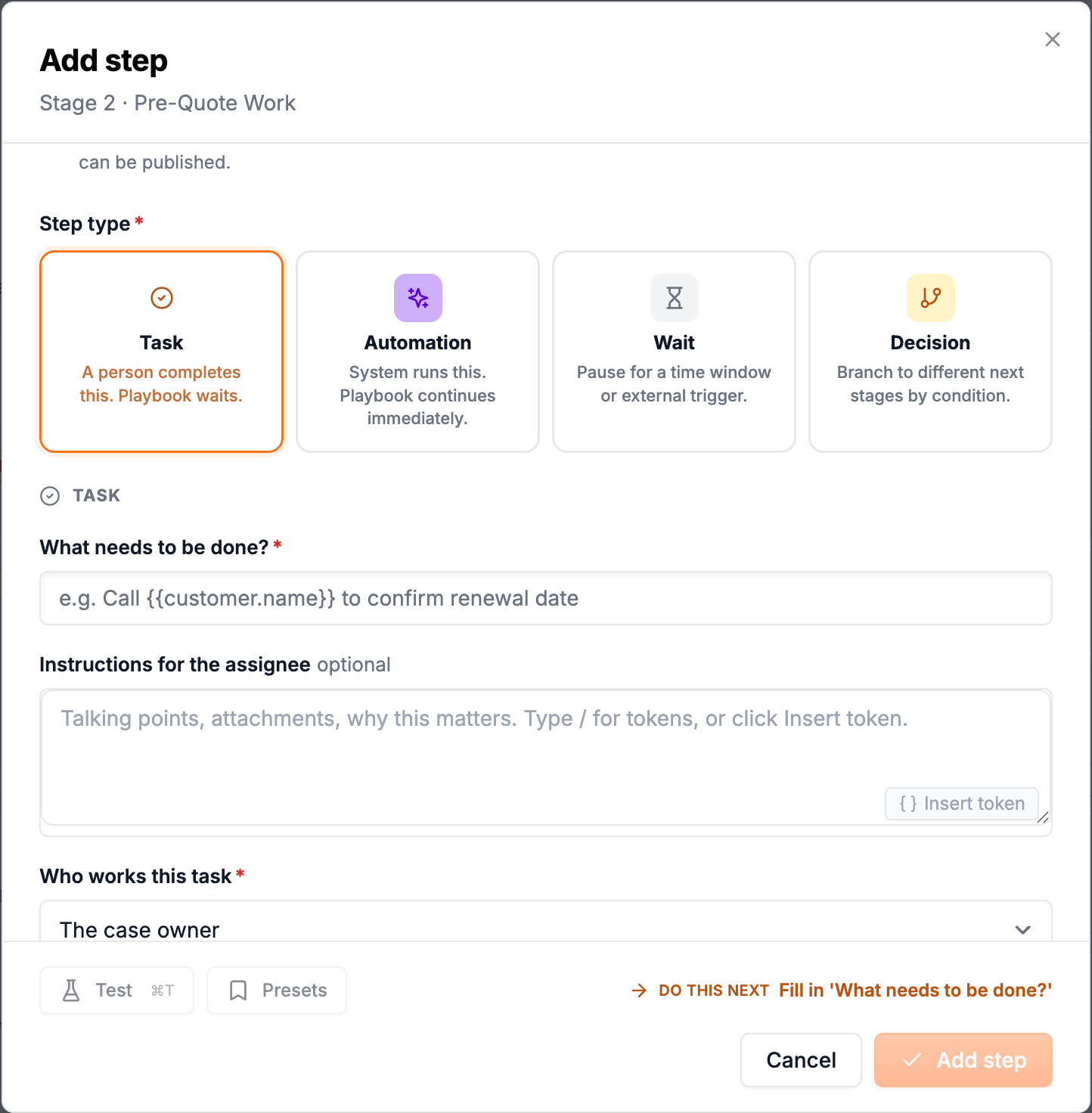
Configure a Manual Task step
- Title (required). Shown to producers on their task list and the Kanban card.
- Additional context or instructions for the producer completing the task.
- Choose Case Owner (default), a specific user, or a role such as Senior Producer or Retention Specialist.
- Due date. Fixed number of days after the stage is entered, or a number of days before the renewal date.
- Toggle on if this step must be completed before the case can advance to the next stage.
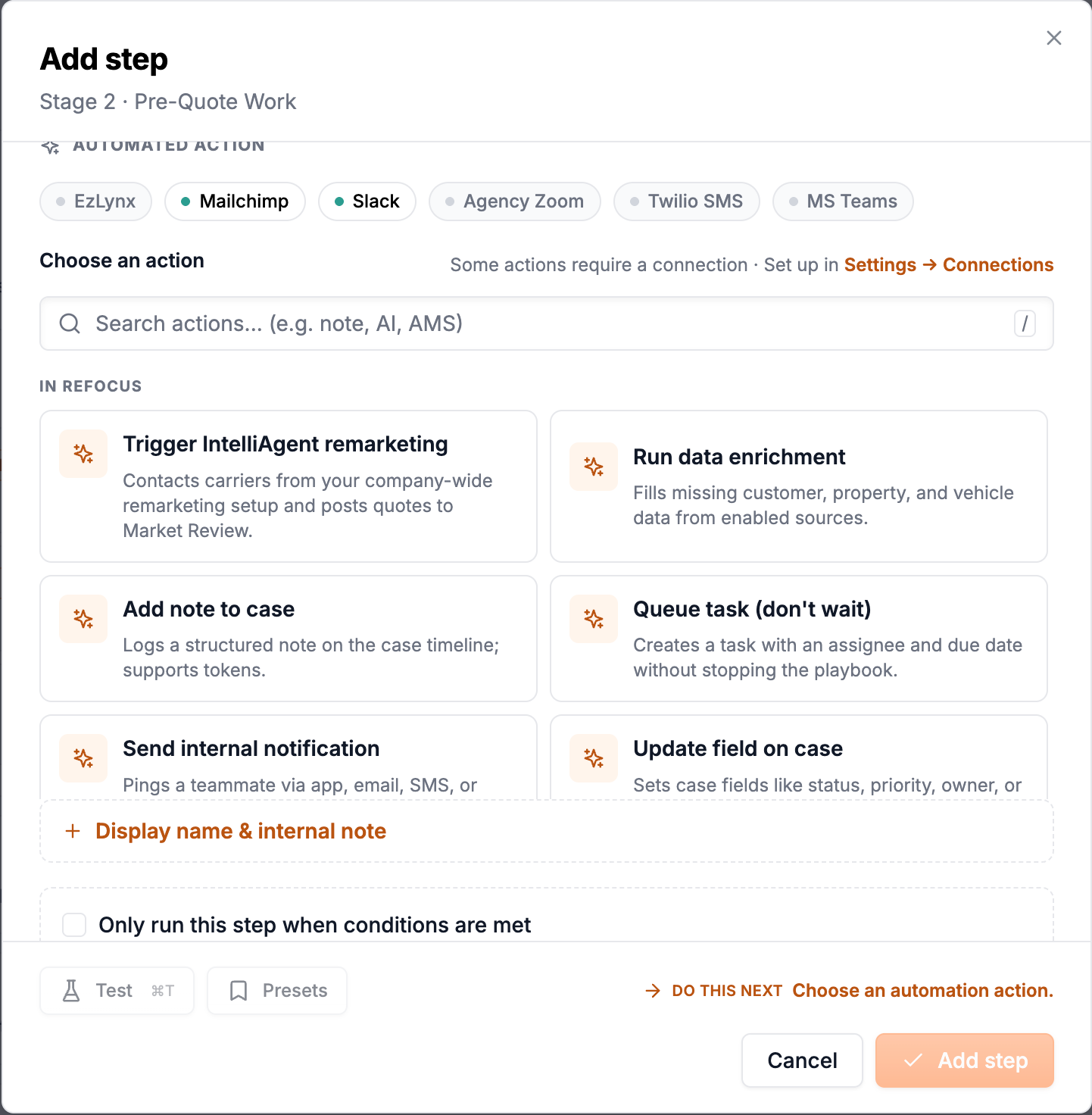
Configure an Automated Action step
- Select from the available actions: Trigger IntelliAgent Remarketing, Run data enrichment, Add note to case, Update Field on Case, Queue task
- or Send Internal Notification.
- Action-specific settings. For IntelliAgent Remarketing: carrier selection. For Send internal notification: message to be sent.
Reorder steps
Drag a step card up or down within a stage to change its position. Steps run in order from top to bottom.
Remove a step
Select the step card and choose Remove step. On a published playbook, removing a step creates a new draft version.