
This guide walks you through each step so you can start using ReFocus AI's remarketing and account monitoring capabilities.
Step 1: Enable ReFocus AI in the HawkSoft Marketplace
- Confirm that you have Marketplace access in HawkSoft.
- In the Marketplace, search for ReFocus AI and enable both Read and Writeaccess.
Step 2: Connect HawkSoft in ReFocus AI
- In a browser tab, go to the ReFocus AI Platform and create an account if you do not already have one.
- Once logged in, navigate to:
Settings → AMS → Select HawkSoft - Enter your Agency ID. It appears on the HawkSoft desktop login screen. Not sure where to find it? See How to find your Hawksoft Agency ID?.
- Click Authenticate to connect HawkSoft to ReFocus AI.
For more detail, see How to Connect ReFocus to Your HawkSoft AMS System.
Step 3: Set Monitoring Timeframes
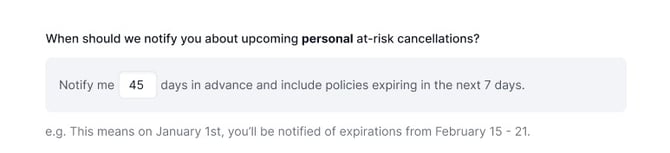
ReFocus AI lets you set how far in advance you want to begin monitoring accounts for remarketing opportunities:
- Personal Lines: Typically 45 to 60 days before renewal
- Commercial Lines: Typically 90 to 120 days before renewal
Adjust these settings based on your agency's workflow preferences.
Step 4: Initial Data Sync
Once your settings are saved, ReFocus AI begins syncing your data from HawkSoft.
- Sync duration: Typically 4 to 5 days
- You receive an email notification when the sync is complete, inviting you to continue the onboarding process inside the ReFocus AI portal.
Step 5: Data Mapping in ReFocus AI
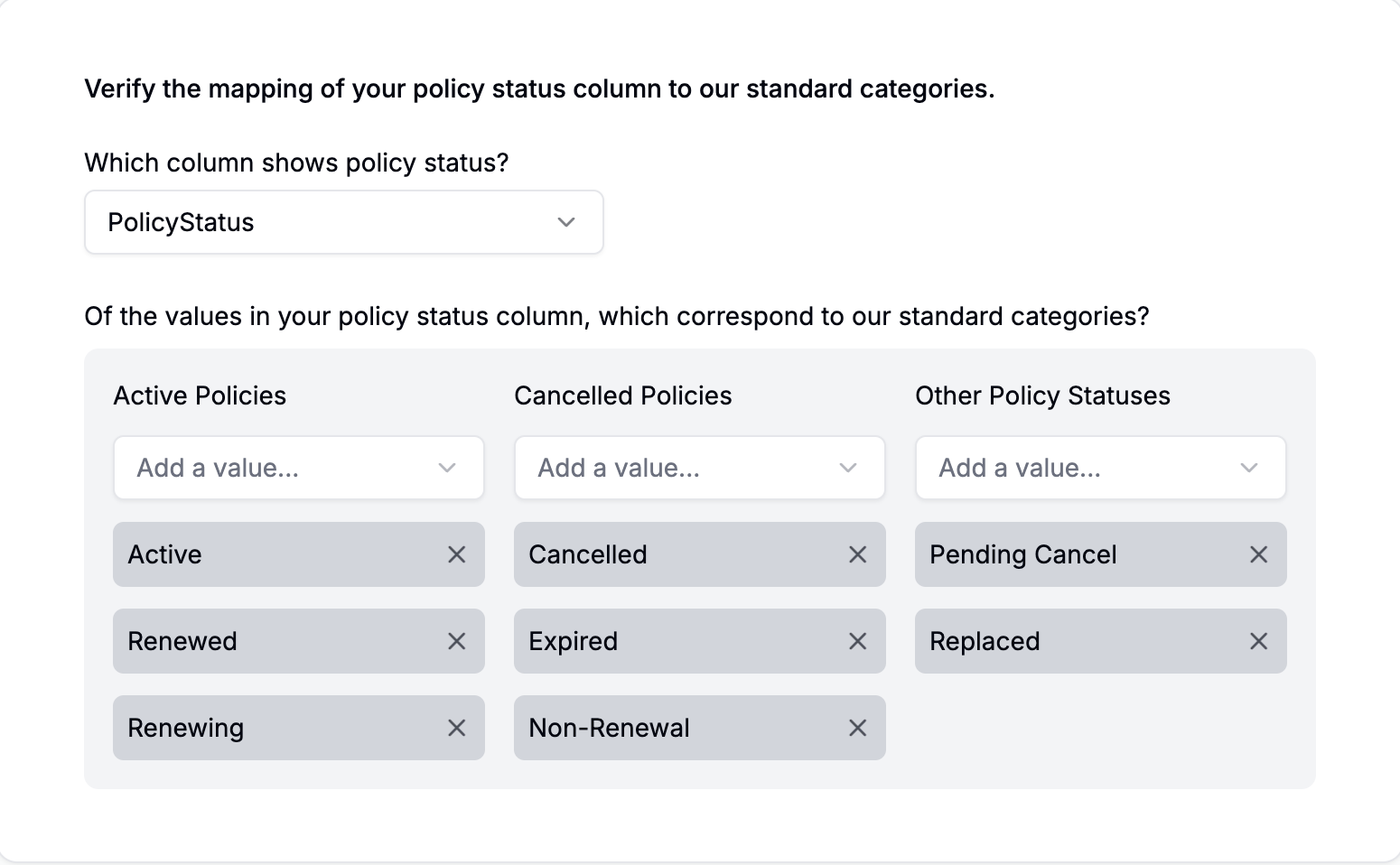
Before you can use the full capabilities of ReFocus AI, you complete a short data mapping exercise:
- Map data such as Active Policies to the correct fields in ReFocus AI.
- If you have any questions, your Customer Success Manager (CSM) can walk you through the process.
Step 6: Start Seeing Results
Within about one week of completing data mapping, you begin to see:
- At-risk accounts flagged for review
- All of your renewals within a 60-day window, with the option to remarket these policies
Your team can then work more efficiently, focus on higher-value client interactions, and service more accounts in less time.
Tip: For the best results, review your monitoring timeframes quarterly and adjust them based on market conditions, carrier changes, and renewal trends.