
Many carriers send a one-time MFA code to your agency’s inbox each time ReFocus AI logs in to a carrier portal. Until now, with agency shared credentials, you had to create forwarding rules in your email system so those codes reached ReFocus AI.
With connected email, you link your Gmail or Microsoft Outlook inbox to ReFocus AI once. When a carrier sends an MFA code, ReFocus AI reads the code from your inbox and uses it to complete the login. You no longer set up forwarding rules.
This article covers two parts: connecting your email, and selecting that email for each carrier.
Before you begin
- This feature applies to carriers set up with agency shared credentials that send MFA codes by email. This feature does not apply to dedicated credentials or SMS-based MFA.
- You need access to the Google or Microsoft account that receives the carrier MFA emails.
- Connected email is turned on for each agency. If you do not see Email under Settings, contact support@refocusai.com.
Part 1: Connect your email
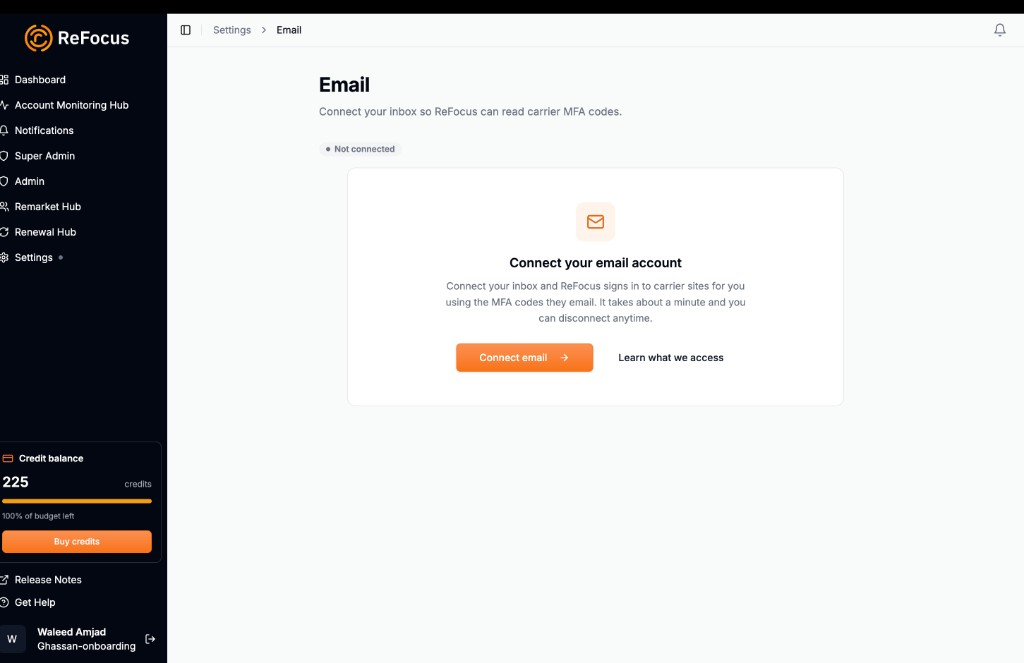
- In ReFocus AI, go to Settings → Email. If no mailbox is connected, you see the not-connected page.
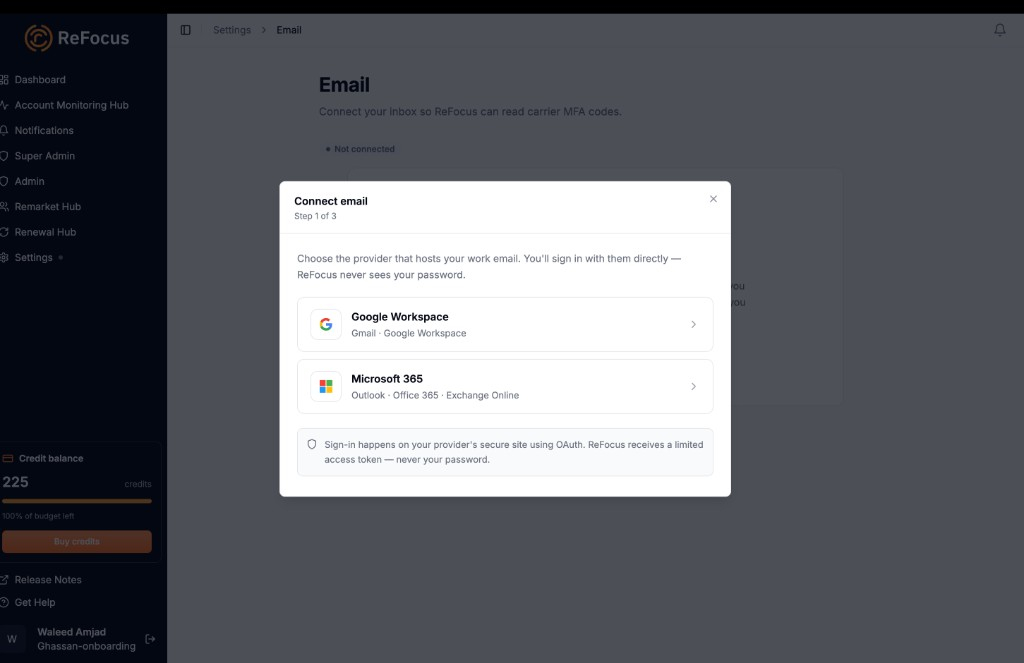
- Choose your email provider: Gmail or Microsoft Outlook.
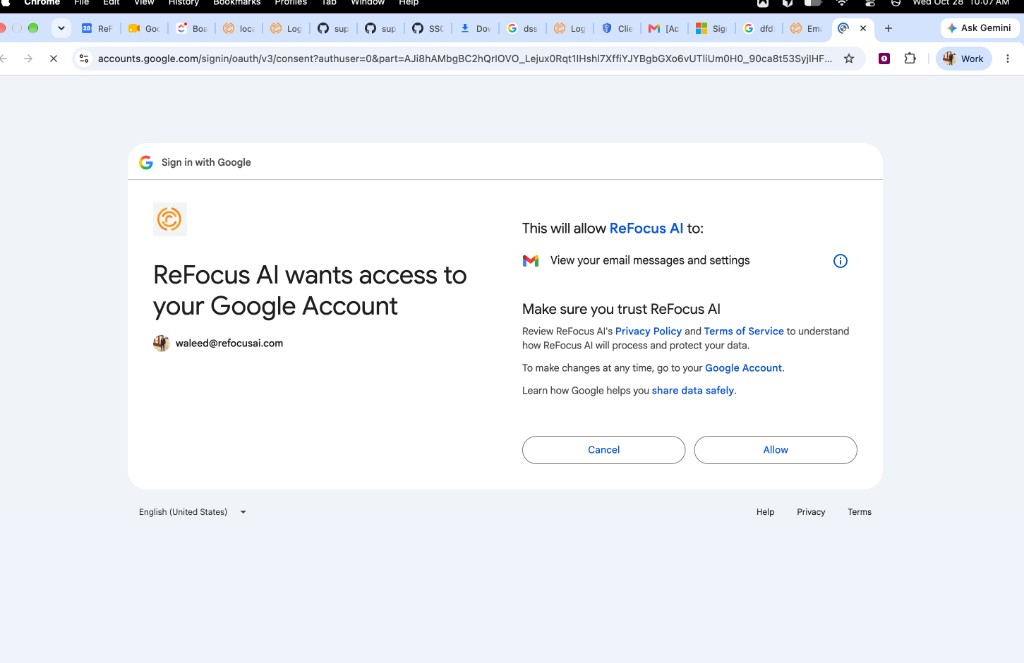
- A window opens from Google or Microsoft. Sign in to the mailbox that receives your carrier MFA emails and approve the access request. If the window does not open, allow pop-ups for ReFocus AI in your browser.
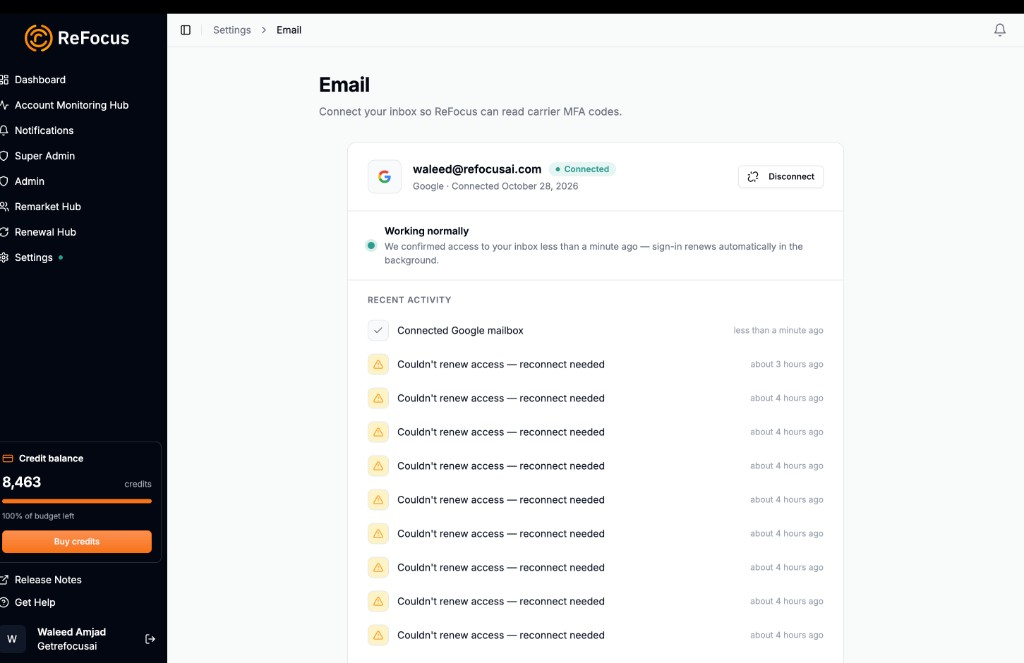
- The window closes and you return to ReFocus AI. The page now shows your mailbox as connected, along with recent connection activity.
Each ReFocus AI user connects one mailbox. Mailboxes connected by anyone in your agency are available when you set up a carrier.
Note: If you use a Microsoft 365 account managed by your organization, an administrator may need to approve the connection before you can finish.
Part 2: Select the connected email for a carrier
- Go to Settings → Carriers.
- Click Add Carrier, or select an existing carrier to update it.
- For the credential type, select Agency Shared Credentials.
- In the MFA Forwarding Setup section, choose Connected Email.
- Select the mailbox from the list. The list shows every connected mailbox in your agency.
- Save your changes.
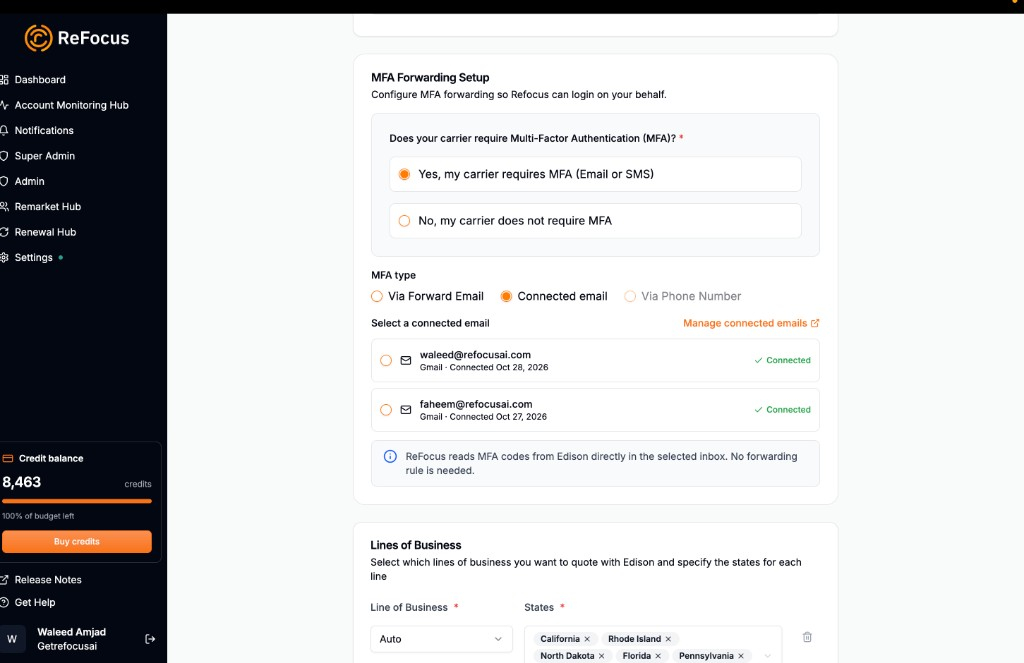
From now on, ReFocus AI reads the MFA code from that mailbox whenever this carrier asks for one. Repeat these steps for each carrier that sends codes to the same inbox.
Manage your connection
You can check the status of your connection at any time under Settings → Email.
Reconnect your email
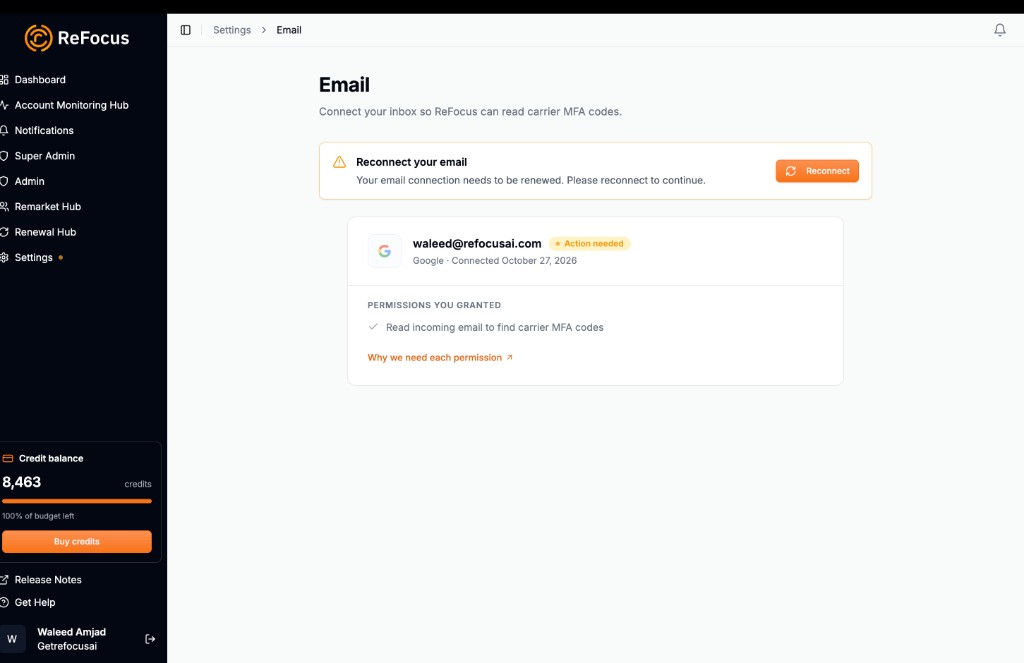
If the page shows that your mailbox needs to be reconnected, ReFocus AI can no longer read MFA codes from it. This can happen after you change your email password or remove ReFocus AI’s access from your Google or Microsoft account. Until you reconnect, logins for carriers that use this mailbox can fail.
- Go to Settings → Email.
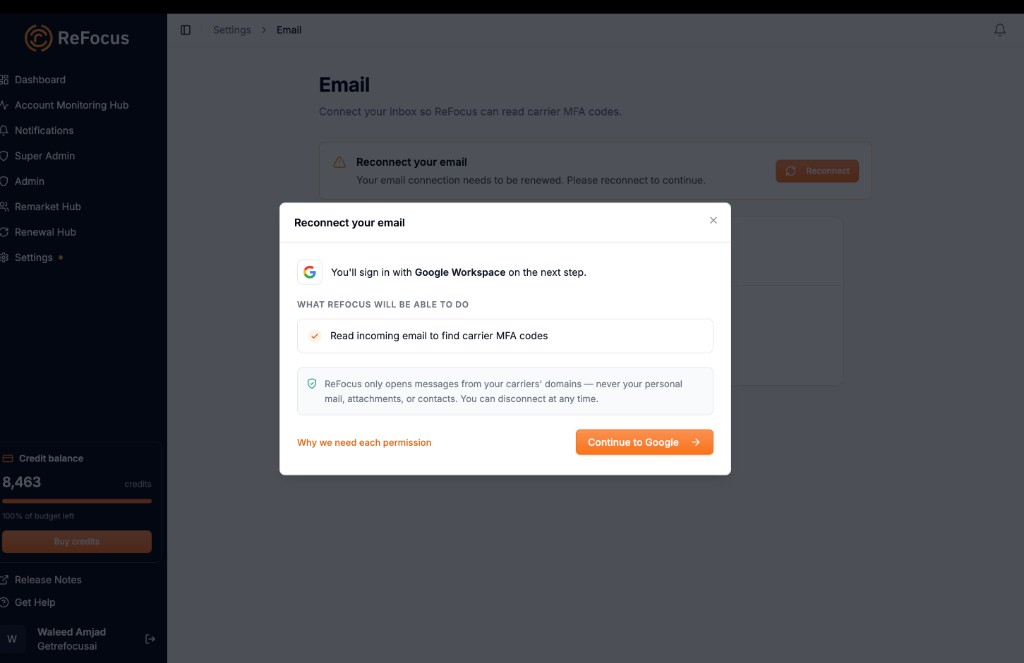
- Click the reconnect option and sign in to your Google or Microsoft account again.
Disconnect your email
You can disconnect your mailbox at any time from Settings → Email. ReFocus AI deletes its stored access to the mailbox right away.
Before you disconnect, check which carriers use that mailbox. ReFocus AI does not switch those carriers to another mailbox on its own, so their logins fail until you select a different connected mailbox or reconnect this one.
Privacy and security
- You sign in on the Google or Microsoft page. ReFocus AI never sees or stores your email password.
- ReFocus AI processes only the carrier MFA emails it needs to find the code. It does not access attachments, contacts, or calendars.
- ReFocus AI does not save your emails. Message content is processed in memory only.
- Colleagues who select your mailbox for a carrier cannot see your messages.
- Access tokens are encrypted and deleted when you disconnect.
- Your email data is not used to train AI models.
Troubleshooting
- The sign-in window does not open. Allow pop-ups for ReFocus AI in your browser and try again.
- Your administrator must approve access. Ask your Microsoft 365 administrator to approve the connection, then try again.
- A carrier login still fails. Confirm that your mailbox shows as connected under Settings → Email, that the correct mailbox is selected for the carrier, and that the carrier’s MFA email arrives in that inbox. If the issue continues, contact support@refocusai.com.