
💡In order to sync with EZLynx, ReFocus requires Applicant IDs. Please carefully review the instructions below.
To get applicant IDs, run the 'Active Customers with Email' report using the following steps:
Ensure you have full reporting access prior to this step. You will need to be able to pull and run two reports
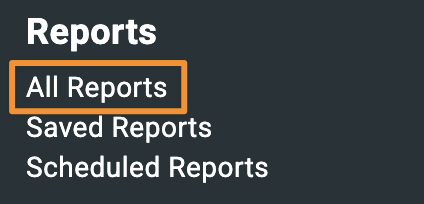
1. Hover over the Reports icon in the left sidebar.

2. Click All Reports
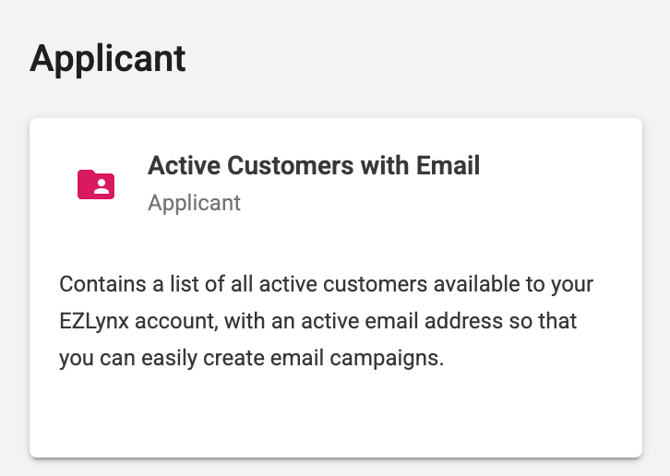
3. Scroll down and click on the card for the Active Customers with Email report. This will take you into the report where you can see the filters available for that specific report.
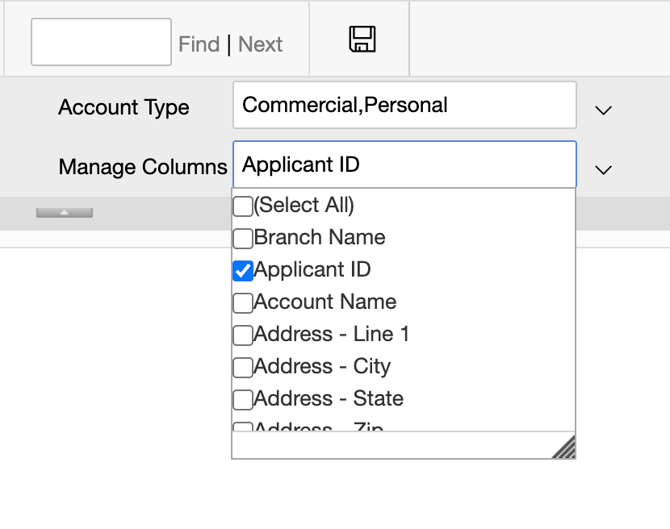
4. In the Active Customers with Email report, use the Managed Columns dropdown to display only the Applicant ID column. Remove all other columns.
**Warning** Sometimes running this report more than once errors out the system and can delay onboarding time. Please ensure accuracy when filling out the fields.
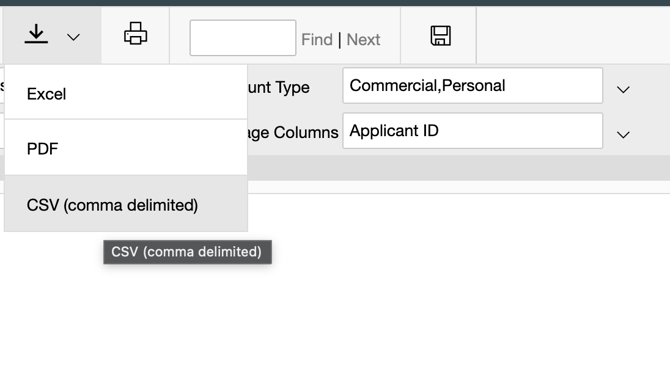
5.Once the report has been run the results can be exported as a CSV via the Export menu.
6. MAKE SURE TO DO THIS STEP: Once you download the CSV, please make sure to either use the template and format provided in the ReFocus onboarding (this is located in step 1 on the platform) OR make the CSV match the template. This step is critical for proper data synchronization. Any changes in format may result in a delay in data syncing.