---
title: How to add Carriers for Automated Remarketing
description: This guide walks you through setting up email forwarding to support MFA authentication for Automated Remarketing access.
---
[Skip to content](https://knowledge.refocusai.com/how-to-add-carriers#main-content)
[More support](https://knowledge.refocusai.com/kb-tickets/new?hsLang=en) [Customer portal](https://knowledge.refocusai.com/support?hsLang=en)

- [ReFocus AI Website](https://refocusai.com)
- [Blog](https://blog.refocusai.com)
Open main navigation
Close main navigation
- [ReFocus AI Website](https://refocusai.com)
- [Blog](https://blog.refocusai.com)
- [More support](https://knowledge.refocusai.com/kb-tickets/new)
- [Customer portal](https://knowledge.refocusai.com/support)
How can we help you?
- There are no suggestions because the search field is empty.
1. [Knowledge Center](https://knowledge.refocusai.com/?hsLang=en)
2. [Onboarding](https://knowledge.refocusai.com/onboarding?hsLang=en)
3. [Set up Carrier Access & MFA Forwarding](https://knowledge.refocusai.com/onboarding?hsLang=en#set-up-carrier-access-mfa-forwarding)
March 10, 2026
# How to add Carriers for Automated Remarketing
## Use this guide to add carrier access in ReFocus so we can quote successfully for automated remarketing.
#### ✅ Before you click anything (required)
### This should be completed by the person assigned to carrier setup
Proceed only if you have:
- ✅ **ReFocus AI:** Account Admin
- ✅ **Carrier portals:** Can create/manage users
- ✅ **Email system:** Can set up forwarding (or can pull in IT immediately)
If you’re missing any of the above: **STOP** and involve the right admin(s). Carrier setup will fail without these.
---
#### ✅ Step 0 — Choose the correct path (pick one)
### **Path A (preferred): Dedicated ReFocus Credentials**
Use this when the carrier allows a separate login for support/unlicensed users.
➡️ You will **create a new carrier portal user** using the **exact ReFocus-provided email shown in the carrier settings page**.
### **Path B: Agency-Provided (Licensed) Credentials**
Use this when the carrier requires logins tied to licensed agents.
➡️ You will **enter a licensed user’s login** and set up **MFA email forwarding** from that mailbox.
Not sure? **STOP** and confirm before you continue.
---
#### ✅ Step 1 — Open the carrier in ReFocus
**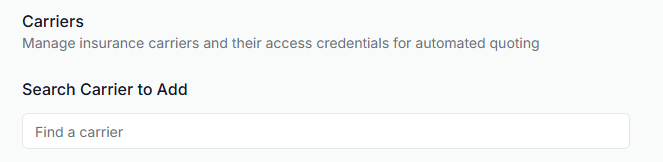**
1. Log in to ReFocus: **app.refocusai.com**
2. Go to **Settings ➡️ Carriers**
3. Search for the carrier → click it to open the carrier settings page
**Next:** follow **Path A** *or* **Path B** below.
---
### Path A — Dedicated ReFocus Credentials
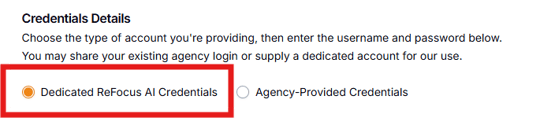
#### A1) Copy the exact ReFocus email (must-do)
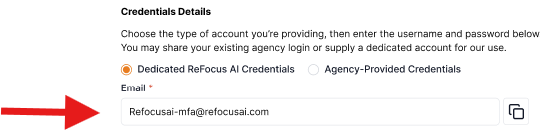
1. Under **Credential Details**, select **Dedicated ReFocus Credentials**
2. Copy the **ReFocus-provided email** shown on the page
⚠️ Use this exact email (do not use a generic inbox or placeholder)
If the carrier uses SMS MFA:
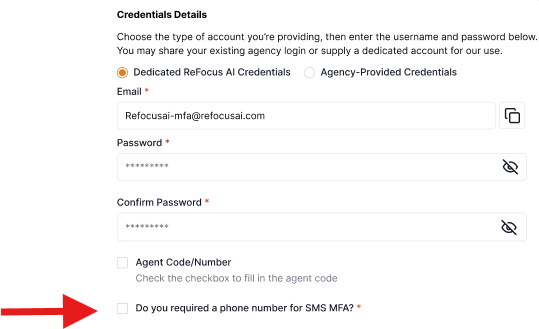
- Check **Do you require a phone number for SMS MFA**
- Copy the phone number provided by ReFocus (you’ll enter it in the carrier portal)
#### A2) Create the user inside the carrier portal
In the carrier portal, create a **new user**:
- Email: **(paste the ReFocus-provided email)**
- First Name: **Freddy**
- Last Name: **Focus**
- Agent Code: **Your agency code** (recommended when available)
- Phone (SMS MFA only): **Use the ReFocus-provided phone number**
- Date of Birth: **August 09, 1980**
✅ If you see “Send activation/invite email,” make sure it’s enabled.
#### A3) Enter credentials in ReFocus and save
Back in ReFocus:
1. Enter the **username/password** you created for that carrier user
2. Add agent code if applicable
3. Click **Save**
**What happens next:** ReFocus will confirm the carrier’s invite/MFA is received and complete verification.
If it’s not received, your **Customer Success Manager will notify you** and you should follow:
[https://knowledge.refocusai.com/how-to-set-up-mfa-email-forwarding-to-refocus-ai](https://knowledge.refocusai.com/how-to-set-up-mfa-email-forwarding-to-refocus-ai?hsLang=en)
---
### Path B — Agency-Provided (Licensed) Credentials + MFA Forwarding
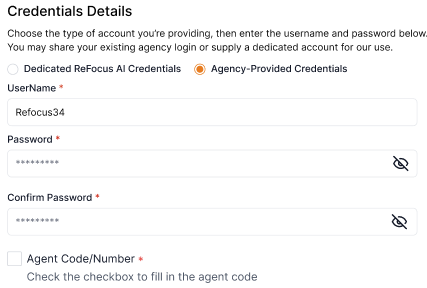
#### B1) Enter licensed credentials in ReFocus
1. Under **Credential Details**, select **Agency-Provided Credentials**
2. Enter the licensed user’s **username/password**
3. Add agent code if required
4. Copy the email shown in **MFA Forwarding Setup** (you will use it next)
#### B2) Create the forwarding rule
In the licensed user’s mailbox, create a rule to forward carrier MFA emails to the ReFocus forwarding address you copied.
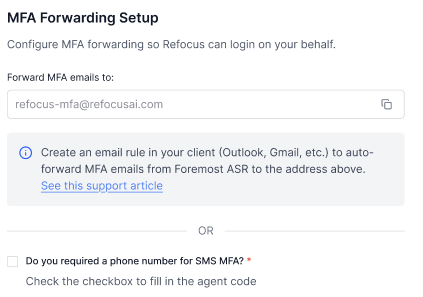
💡If your organization blocks external forwarding, involve IT and follow:
[https://knowledge.refocusai.com/how-to-set-up-mfa-email-forwarding-to-refocus-ai](https://knowledge.refocusai.com/how-to-set-up-mfa-email-forwarding-to-refocus-ai?hsLang=en)
#### B3) Save
Click **Save**. ReFocus will verify. If MFA isn’t received, your CSM will let you know.
---
### ✅ Step 2 — Set Lines of Business + States (required)
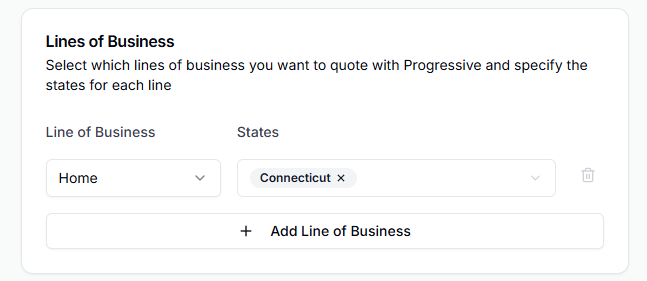
1. **Lines of Business:** select what you want to quote with this carrier
2. **States:** select **All** or choose specific states
3. Click **Save**
⚠️ ReFocus may remove states automatically when carriers decline new business in those states to avoid unnecessary quoting.
---
#### Need help?
If you get stuck—or you’re unsure which path to use—**stop and open a support ticket** in the ReFocus portal (bottom-left ➡️ **Get Help**). Your Customer Success Manager will guide you.
- [Onboarding](https://knowledge.refocusai.com/onboarding?hsLang=en#main-content)
- [Start Here](https://knowledge.refocusai.com/onboarding?hsLang=en#start-here)
- [Set up Carrier Access & MFA Forwarding](https://knowledge.refocusai.com/onboarding?hsLang=en#set-up-carrier-access-mfa-forwarding)
- [Account Monitoring](https://knowledge.refocusai.com/onboarding?hsLang=en#account-monitoring)
- [Remarketing](https://knowledge.refocusai.com/onboarding?hsLang=en#remarketing)
- [Data Enrichment](https://knowledge.refocusai.com/onboarding?hsLang=en#data-enrichment)
- [Risk Engineering](https://knowledge.refocusai.com/onboarding?hsLang=en#risk-engineering)
- [Installing & Using Bridge (Browser Extension)](https://knowledge.refocusai.com/onboarding?hsLang=en#installing-using-bridge-browser-extension)
- [Renewal Hub](https://knowledge.refocusai.com/onboarding?hsLang=en#renewal-hub)
- [User Access and Permissions](https://knowledge.refocusai.com/onboarding?hsLang=en#user-access-and-permissions)
- [Integrations](https://knowledge.refocusai.com/integrations?hsLang=en#main-content)
- [General](https://knowledge.refocusai.com/integrations?hsLang=en#general)
- [Jetfile](https://knowledge.refocusai.com/integrations?hsLang=en#jetfile)
- [AgencyZoom](https://knowledge.refocusai.com/integrations?hsLang=en#agencyzoom)
- [AMS360](https://knowledge.refocusai.com/integrations?hsLang=en#ams360)
- [EZLynx](https://knowledge.refocusai.com/integrations?hsLang=en#ezlynx)
- [Hawksoft](https://knowledge.refocusai.com/integrations?hsLang=en#hawksoft)
- [Salesforce](https://knowledge.refocusai.com/integrations?hsLang=en#salesforce)
- [Applied Epic](https://knowledge.refocusai.com/integrations?hsLang=en#applied-epic)
- [QQ Catalyst](https://knowledge.refocusai.com/integrations?hsLang=en#qq-catalyst)
- [MomentumAMP](https://knowledge.refocusai.com/integrations?hsLang=en#momentumamp)
- [Best Practices Guide](https://knowledge.refocusai.com/best-practices-guide?hsLang=en)
- [Release Notes](https://knowledge.refocusai.com/release-notes?hsLang=en#main-content)
- [2025](https://knowledge.refocusai.com/release-notes?hsLang=en#2025)
- [2026](https://knowledge.refocusai.com/release-notes?hsLang=en#2026)
- [Product Roadmap](https://knowledge.refocusai.com/release-notes?hsLang=en#product-roadmap)
[](http://refocusai.com)
[mailto:support@refocusai.com](mailto:support@refocusai.com)
Copyright © 2025, ReFocus AI Inc.