---
title: How to Set Up MFA Email Forwarding for IT Administrators in Google Workspace
description: How to set up MFA email forwarding to ReFocus AI for IT Admins in Google Workspace
---
[Skip to content](https://knowledge.refocusai.com/how-to-set-up-mfa-email-forwarding-google-workspace#main-content)
[More support](https://knowledge.refocusai.com/kb-tickets/new?hsLang=en) [Customer portal](https://knowledge.refocusai.com/support?hsLang=en)

- [ReFocus AI Website](https://refocusai.com)
- [Blog](https://blog.refocusai.com)
Open main navigation
Close main navigation
- [ReFocus AI Website](https://refocusai.com)
- [Blog](https://blog.refocusai.com)
- [More support](https://knowledge.refocusai.com/kb-tickets/new)
- [Customer portal](https://knowledge.refocusai.com/support)
How can we help you?
- There are no suggestions because the search field is empty.
1. [Knowledge Center](https://knowledge.refocusai.com/?hsLang=en)
2. [Onboarding](https://knowledge.refocusai.com/onboarding?hsLang=en)
3. [Set up Carrier Access & MFA Forwarding](https://knowledge.refocusai.com/onboarding?hsLang=en#set-up-carrier-access-mfa-forwarding)
May 5, 2026
# How to Set Up MFA Email Forwarding for IT Administrators in Google Workspace
## Instructions for IT administrators on creating secure forwarding rules for carrier MFA emails in Google Workspace.
### **Overview**
Some insurance carriers send **Multi-Factor Authentication (MFA)** codes via email when IntelliAgent logs into their portals on your behalf.
For IntelliAgent to complete these logins automatically, your agency’s **IT department** must set up email forwarding so MFA messages reach ReFocus AI’s secure mailbox.
This article explains how your IT team can identify the carrier MFA senders and configure forwarding rules in **Google Workspace (Gmail)**.
💡For instructions on setting up MFA forwarding for Microsoft 365, Exchange, or Outlook, see the [Microsoft instructions here](https://knowledge.refocusai.com/how-to-set-up-mfa-email-forwarding-microsoft-outlook?hsLang=en).
### **Who Should Use This Guide**
This guide is intended for **agency IT administrators** or technical contacts who manage the agency’s email system (e.g., Google Workspace).
💡For non-technical staff, [check out this article](https://knowledge.refocusai.com/how-to-set-up-email-forwarding-for-mfa-codes-in-automated-remarketing?hsLang=en) on adding ReFocus to your carriers.
### **Why This Setup Matters**
By automatically forwarding MFA messages to ReFocus AI, IntelliAgent securely receives the code and continues the remarketing process without manual steps or delays.
### **Watch the Guided Tutorial**
### **Step 1: Identify Carrier MFA Sender Addresses**
Your IT team should collect the email addresses carriers use to send MFA codes.
Here are some examples:
- **Safeco:** `noreply@mfa.safeco.com`
- **Travelers:** `donotreply@travelers.com`
- **Progressive:** `security@progressive.com`
> **Tip:** Review recent MFA emails in your agency inbox or trigger a test login to confirm the sender address for each carrier.
### **Step 2: Obtain Your ReFocus AI Forwarding Address**
ReFocus AI assigns a unique forwarding address to each agency. To locate this address, navigate to **Settings** ➡️ **Carriers** ➡️ and **select** any available carrier. You will see the forwarding address displayed as follows:
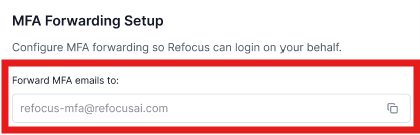
This is the secure mailbox IntelliAgent uses to process MFA codes for your agency.
💡A single, dedicated forwarding address is used for all carrier MFA messages at your agency.
### **Step 3a: Create a Forwarding Address in Google Workspace (Gmail)**
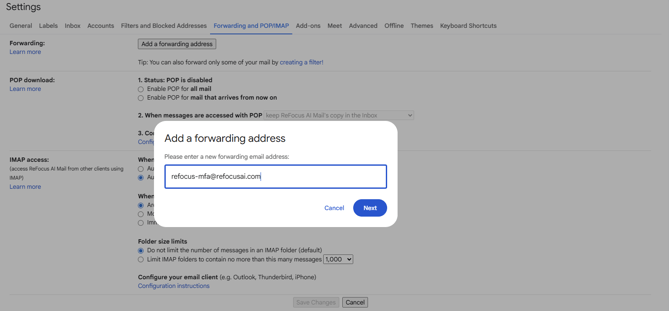
1. Go to **Settings → See all settings → Forwarding and POP/IMAP → Add a forwarding address**
2. In the **Add a forwarding address** module that opens, insert your unique agency email address.
3. Select **Next**, and complete the required authentication steps.
4. **Confirm** to finalize the forwarding addresssetup.
💡This will send an email to your ReFocus customer success manager. They will accept the request to allow forwarding.
### **Step 3b: Create Forwarding Rules in Google Workspace (Gmail)**
****
1. **Go to Settings → See all settings → Filters and Blocked Addresses → Create a new filter**.
2. In the “From” field, enter the carrier sender addresses. You can use a ',' between multiple carrier email addresses to configure the rule in bulk.
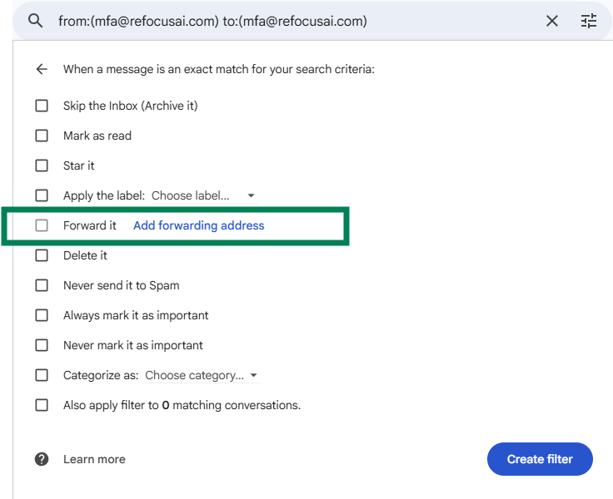
3. Choose **Forward it to** and select your ReFocus AI forwarding address.
4. Select the button to **Create Filter**.
5. On the window that opens, ensure the **Forward it** option is checked, and in the **Add Forwarding Address** field, select your recently created forwarding address.
6. Select **Create Filter** to finalize.
### **Step 4: Test the Setup**
1. Trigger a login that requests a carrier MFA code.
2. Verify that the MFA email is forwarded automatically to your ReFocus AI forwarding address by selecting the **Verify Email** button.

### **Step 5: Maintain and Update Regularly**
- Review forwarding rules anytime you add a new carrier.
- Update the rules if a carrier changes its sender domain.
- Revalidate forwarding after system upgrades or policy updates.
### **Security Notes**
- All MFA messages are processed securely by ReFocus AI and used **only** for authentication.
- Do **not** forward unrelated emails to your ReFocus AI address.
- Credentials and MFA codes are never stored beyond the authentication process.
### **Need Help?**
If your IT team has completed these steps but IntelliAgent still isn’t receiving MFA codes:
- Verify the carrier’s sender domain again.
- Check if forwarding rules were applied correctly.
- Contact **ReFocus AI Support** via your support portal or email at **support@refocusai.com**.
- [Onboarding](https://knowledge.refocusai.com/onboarding?hsLang=en#main-content)
- [Start Here](https://knowledge.refocusai.com/onboarding?hsLang=en#start-here)
- [Set up Carrier Access & MFA Forwarding](https://knowledge.refocusai.com/onboarding?hsLang=en#set-up-carrier-access-mfa-forwarding)
- [Account Monitoring](https://knowledge.refocusai.com/onboarding?hsLang=en#account-monitoring)
- [Remarketing](https://knowledge.refocusai.com/onboarding?hsLang=en#remarketing)
- [Data Enrichment](https://knowledge.refocusai.com/onboarding?hsLang=en#data-enrichment)
- [Risk Engineering](https://knowledge.refocusai.com/onboarding?hsLang=en#risk-engineering)
- [Installing & Using Bridge (Browser Extension)](https://knowledge.refocusai.com/onboarding?hsLang=en#installing-using-bridge-browser-extension)
- [Renewal Hub](https://knowledge.refocusai.com/onboarding?hsLang=en#renewal-hub)
- [User Access and Permissions](https://knowledge.refocusai.com/onboarding?hsLang=en#user-access-and-permissions)
- [Integrations](https://knowledge.refocusai.com/integrations?hsLang=en#main-content)
- [General](https://knowledge.refocusai.com/integrations?hsLang=en#general)
- [Jetfile](https://knowledge.refocusai.com/integrations?hsLang=en#jetfile)
- [AgencyZoom](https://knowledge.refocusai.com/integrations?hsLang=en#agencyzoom)
- [AMS360](https://knowledge.refocusai.com/integrations?hsLang=en#ams360)
- [EZLynx](https://knowledge.refocusai.com/integrations?hsLang=en#ezlynx)
- [Hawksoft](https://knowledge.refocusai.com/integrations?hsLang=en#hawksoft)
- [Salesforce](https://knowledge.refocusai.com/integrations?hsLang=en#salesforce)
- [Applied Epic](https://knowledge.refocusai.com/integrations?hsLang=en#applied-epic)
- [QQ Catalyst](https://knowledge.refocusai.com/integrations?hsLang=en#qq-catalyst)
- [MomentumAMP](https://knowledge.refocusai.com/integrations?hsLang=en#momentumamp)
- [Best Practices Guide](https://knowledge.refocusai.com/best-practices-guide?hsLang=en)
- [Release Notes](https://knowledge.refocusai.com/release-notes?hsLang=en#main-content)
- [2025](https://knowledge.refocusai.com/release-notes?hsLang=en#2025)
- [2026](https://knowledge.refocusai.com/release-notes?hsLang=en#2026)
- [Product Roadmap](https://knowledge.refocusai.com/release-notes?hsLang=en#product-roadmap)
[](http://refocusai.com)
[mailto:support@refocusai.com](mailto:support@refocusai.com)
Copyright © 2025, ReFocus AI Inc.