
Before you begin
Make sure you have:
- Google Chrome installed
- Permission to install browser extensions
- Access to the Bridge by ReFocus Chrome Web Store listing:
https://chromewebstore.google.com/detail/lbcallmciibegmlikcjjdafmjkchlkkm
👉 Note: Bridge is available in the Chrome Web Store, but some companies restrict browser extension installs. If your Chrome browser is managed by your organization, your IT team may need to approve the extension before you can install it.
Install Bridge
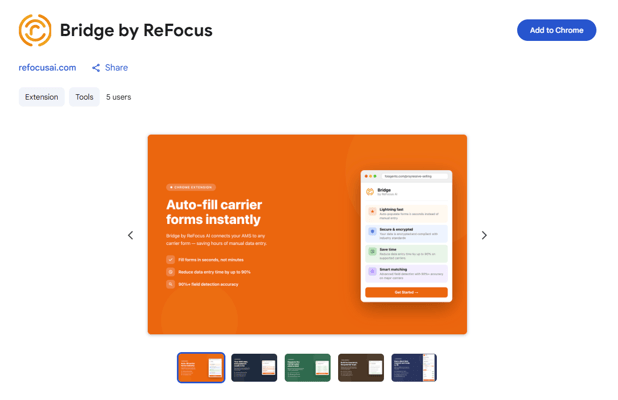
- Open Google Chrome.
- Go to the Bridge by ReFocus Chrome Web Store listing:
https://chromewebstore.google.com/detail/lbcallmciibegmlikcjjdafmjkchlkkm - Select the install button on the listing.
- Review the browser permissions when prompted.
- Select Add extension to confirm.
- Once installed, Bridge will be added to your Chrome extensions.
Pin Bridge to your Chrome toolbar
Pinning Bridge makes it easier to access from your browser.
- Select the Extensions icon in Chrome.
This usually looks like a puzzle piece near the top-right corner of the browser. - Find Bridge by ReFocus.
- Select the pin icon next to Bridge.
- Bridge will now appear in your Chrome toolbar.
Troubleshooting
I do not see an install option, or Chrome says the extension is blocked
If you do not see an install option, the install option is unavailable, or Chrome says the extension is blocked, your company may restrict browser extension installation.
Some organizations require IT approval before users can install browser extensions.
👉 Contact your internal admin or IT team first and ask them to approve the Bridge by ReFocus Chrome extension. This is usually caused by a corporate browser or security policy, not a ReFocus issue.
I installed Bridge, but I do not see it in my Chrome toolbar
Bridge may be installed but not pinned.
- Select the Extensions icon in Chrome.
- Find Bridge by ReFocus.
- Select the pin icon.
Next step
After Bridge is installed, follow the separate help article for signing in and using the extension with supported ReFocus workflows.