
Overview
When setting up default values in a Risk Engineering Rule, you may see a checkbox next to each field.
This checkbox controls whether ReFocus should:
- Replace information that already exists, or
- Only fill in information that is missing
This matters because some fields should follow your agency’s preferred standards, while others should preserve the customer or policy information already on file.
How the Checkbox Works
Checkbox checked
When the checkbox is checked, ReFocus will use the selected value in the rule even if information already exists.
In other words, the selected rule value will replace the existing customer or policy information.
Use this when your agency wants a specific value to take priority.
Example:
Your agency requires a specific Water Backup Coverage Limit. If the existing policy has a lower limit, checking the box allows ReFocus to update that value to match your agency’s guideline.
Checkbox unchecked
When the checkbox is unchecked, ReFocus will only use the selected value if that information is missing.
If the customer or policy already has information for that field, ReFocus will keep the existing value.
Use this when the existing information is likely accurate and should not be replaced.
Example:
If the existing marital status is Single, and the rule default is set to Married, leaving the checkbox unchecked prevents ReFocus from changing the marital status.
Visual Example: Marital Status
Example setup:
- Existing customer information: Single
- Selected value in the rule: Married
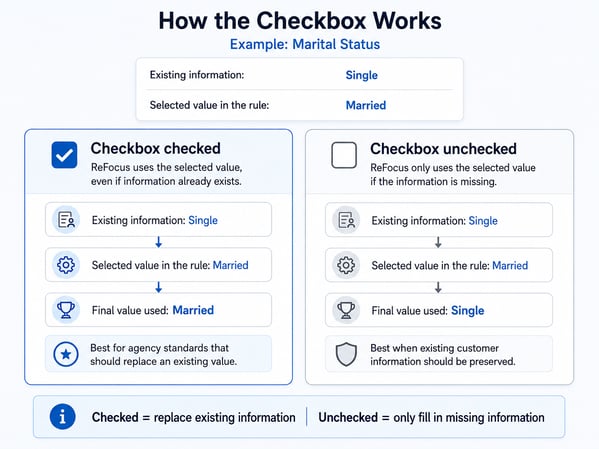
What this means:
| Checkbox Status | Final Value Used | Why |
|---|---|---|
| Checked | Married | ReFocus replaces the existing value with the selected rule value. |
| Unchecked | Single | ReFocus keeps the existing value because the field is not missing. |
When to Check the Box
Consider checking the box when the selected value should become the standard value used by ReFocus.
This is usually helpful for fields tied to agency guidelines, coverage preferences, or quote standards.
Common examples
- Coverage limits
- Deductibles
- Required endorsements
- Agency-preferred quote defaults
- Values that may need to meet minimum agency guidelines
Example:
If your agency always wants Water Backup Coverage quoted at a specific limit, checking the box can help make sure the value is applied even when another value already exists.
💡If the current customer or policy information is higher than the value selected in the Risk Engineering Rule, ReFocus will keep the higher value.
This follows our Meets or Exceeds principle, so existing coverage that already meets or exceeds the rule value will not be reduced.
When to Leave the Box Unchecked
Consider leaving the box unchecked when ReFocus should preserve the existing customer or policy information.
This is usually best for fields that may vary by customer and should not be changed unless the information is missing.
Common examples
- Marital status
- Gender
- Education
- Occupation
- Other customer-specific information
Example:
If marital status already shows Single, but the rule default is set to Married, leaving the checkbox unchecked prevents ReFocus from accidentally replacing accurate customer information.
Quick Reference
| Checkbox | What ReFocus Does | Best Used For |
|---|---|---|
| Checked | Replaces existing information with the selected rule value | Agency standards or required defaults |
| Unchecked | Only uses the selected rule value when the information is missing | Preserving existing customer or policy information |
Rule of Thumb
Checked = replace existing information.
Unchecked = only fill in missing information.