---
title: Publishing and managing playbooks
description: This article is for publishing and managing a playbook
---
[Skip to content](https://knowledge.refocusai.com/publishing-and-managing-playbooks#main-content)
[More support](https://knowledge.refocusai.com/kb-tickets/new?hsLang=en) [Customer portal](https://knowledge.refocusai.com/support?hsLang=en)

- [ReFocus AI Website](https://refocusai.com)
- [Blog](https://blog.refocusai.com)
Open main navigation
Close main navigation
- [ReFocus AI Website](https://refocusai.com)
- [Blog](https://blog.refocusai.com)
- [More support](https://knowledge.refocusai.com/kb-tickets/new)
- [Customer portal](https://knowledge.refocusai.com/support)
How can we help you?
- There are no suggestions because the search field is empty.
1. [Knowledge Center](https://knowledge.refocusai.com/?hsLang=en)
2. [Onboarding](https://knowledge.refocusai.com/onboarding?hsLang=en)
3. [Renewal Hub](https://knowledge.refocusai.com/onboarding?hsLang=en#renewal-hub)
July 17, 2026
# Publishing and managing playbooks
## A playbook must be published before it can enroll cases or be assigned to producers. This article covers publishing a playbook, editing an active playbook, and archiving or setting a default playbook.
**Publish a playbook**
1. Open the playbook in the editor.
2. Select Publish.
3. The playbook will be published.
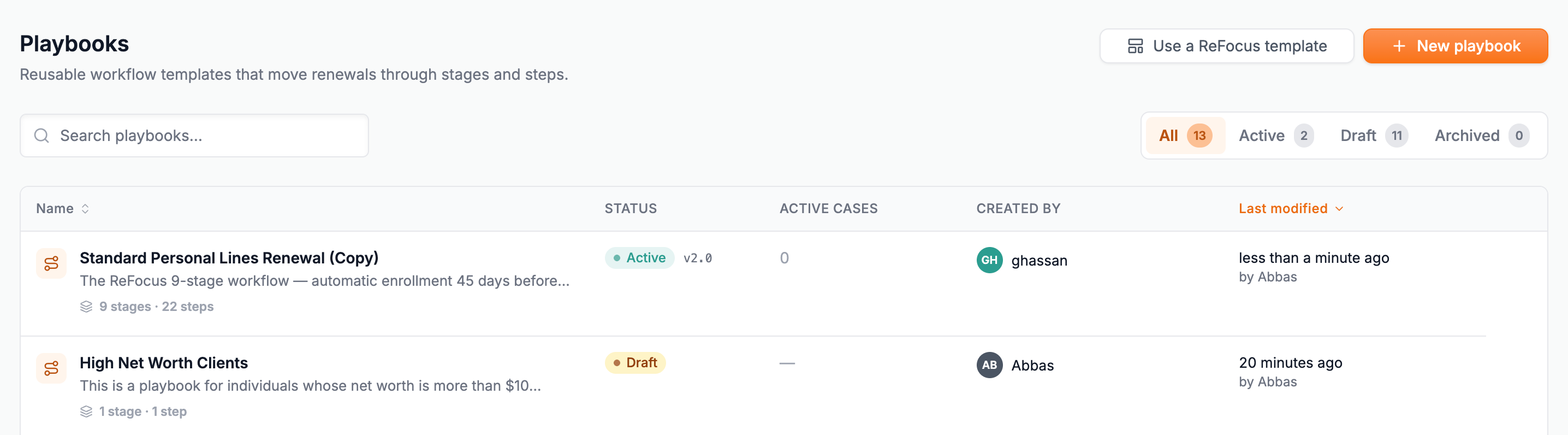
The playbook status changes to Active. New cases that meet the entry conditions are now enrolled automatically. Producers can also manually enroll customers into the playbook from the customer page.
**Edit an active playbook**
Editing a published playbook creates a new draft version. The active version continues running for existing cases and new enrollments until you publish the updated draft.
1. From the Playbooks list, select a playbook.
2. A new draft version opens in the editor. Make your changes.
3. Select Publish when ready.
**Set a default playbook**
The default playbook is used when a customer qualifies for enrollment but does not match any specific playbook's entry conditions. Every agency should have one default playbook.
1. From the Playbooks list, select the menu with the ellipsis on the playbook you want to set as default.
2. Select Set as company default.
The default badge appears next to the playbook name. Only one playbook can be the default at a time.
**Archive a playbook**
Archiving a playbook stops new automatic enrollments. Cases already enrolled in the playbook continue running to completion.
1. From the Playbooks list, select the menu with the ellipsis on the playbook.
2. Select Archive.
The playbook status changes to Archived. It remains visible in the Playbooks list and can be cloned but cannot receive new enrollments. To re-activate it, clone the archived playbook and publish the clone.
- [Onboarding](https://knowledge.refocusai.com/onboarding?hsLang=en#main-content)
- [Start Here](https://knowledge.refocusai.com/onboarding?hsLang=en#start-here)
- [Set up Carrier Access & MFA Forwarding](https://knowledge.refocusai.com/onboarding?hsLang=en#set-up-carrier-access-mfa-forwarding)
- [Account Monitoring](https://knowledge.refocusai.com/onboarding?hsLang=en#account-monitoring)
- [Remarketing](https://knowledge.refocusai.com/onboarding?hsLang=en#remarketing)
- [Data Enrichment](https://knowledge.refocusai.com/onboarding?hsLang=en#data-enrichment)
- [Risk Engineering](https://knowledge.refocusai.com/onboarding?hsLang=en#risk-engineering)
- [Installing & Using Bridge (Browser Extension)](https://knowledge.refocusai.com/onboarding?hsLang=en#installing-using-bridge-browser-extension)
- [Renewal Hub](https://knowledge.refocusai.com/onboarding?hsLang=en#renewal-hub)
- [User Access and Permissions](https://knowledge.refocusai.com/onboarding?hsLang=en#user-access-and-permissions)
- [Integrations](https://knowledge.refocusai.com/integrations?hsLang=en#main-content)
- [General](https://knowledge.refocusai.com/integrations?hsLang=en#general)
- [Jetfile](https://knowledge.refocusai.com/integrations?hsLang=en#jetfile)
- [AgencyZoom](https://knowledge.refocusai.com/integrations?hsLang=en#agencyzoom)
- [AMS360](https://knowledge.refocusai.com/integrations?hsLang=en#ams360)
- [EZLynx](https://knowledge.refocusai.com/integrations?hsLang=en#ezlynx)
- [Hawksoft](https://knowledge.refocusai.com/integrations?hsLang=en#hawksoft)
- [Salesforce](https://knowledge.refocusai.com/integrations?hsLang=en#salesforce)
- [Applied Epic](https://knowledge.refocusai.com/integrations?hsLang=en#applied-epic)
- [QQ Catalyst](https://knowledge.refocusai.com/integrations?hsLang=en#qq-catalyst)
- [MomentumAMP](https://knowledge.refocusai.com/integrations?hsLang=en#momentumamp)
- [Best Practices Guide](https://knowledge.refocusai.com/best-practices-guide?hsLang=en)
- [Release Notes](https://knowledge.refocusai.com/release-notes?hsLang=en#main-content)
- [2025](https://knowledge.refocusai.com/release-notes?hsLang=en#2025)
- [2026](https://knowledge.refocusai.com/release-notes?hsLang=en#2026)
- [Product Roadmap](https://knowledge.refocusai.com/release-notes?hsLang=en#product-roadmap)
[](http://refocusai.com)
[mailto:support@refocusai.com](mailto:support@refocusai.com)
Copyright © 2025, ReFocus AI Inc.