
Start And Manage Remarketing In ReFocus AI
This knowledge base article explains how to start and manage a remarketing process using the ReFocus AI platform. You will learn how to select customers, choose carriers, enrich data, and complete the remarketing workflow.
00:00: This knowledge base article explains how to start and manage a remarketing process
00:03: using the ReFocus AI platform. You will learn how to select customers, choose
00:08: carriers, enrich data, and complete the remarketing workflow.
00:13: Let's learn how to start a remarket.
00:20: Go to the Remarkets tab on the navigation bar.
00:23: Go to Upcoming Renewals tab, where you can see all renewals in the next 60 days.
00:29: Find a customer
00:30: you want to remarket. In order to see which policies are on the account, you can open
00:34: the dropdown next to the name and either select one or all. And this can be repeated
00:39: across multiple customers as well.
00:43: Then go to Start remarket.
00:45: From here choose the carriers you'd like to use.
00:48: Select any additional carriers that you want to include in the remarket.
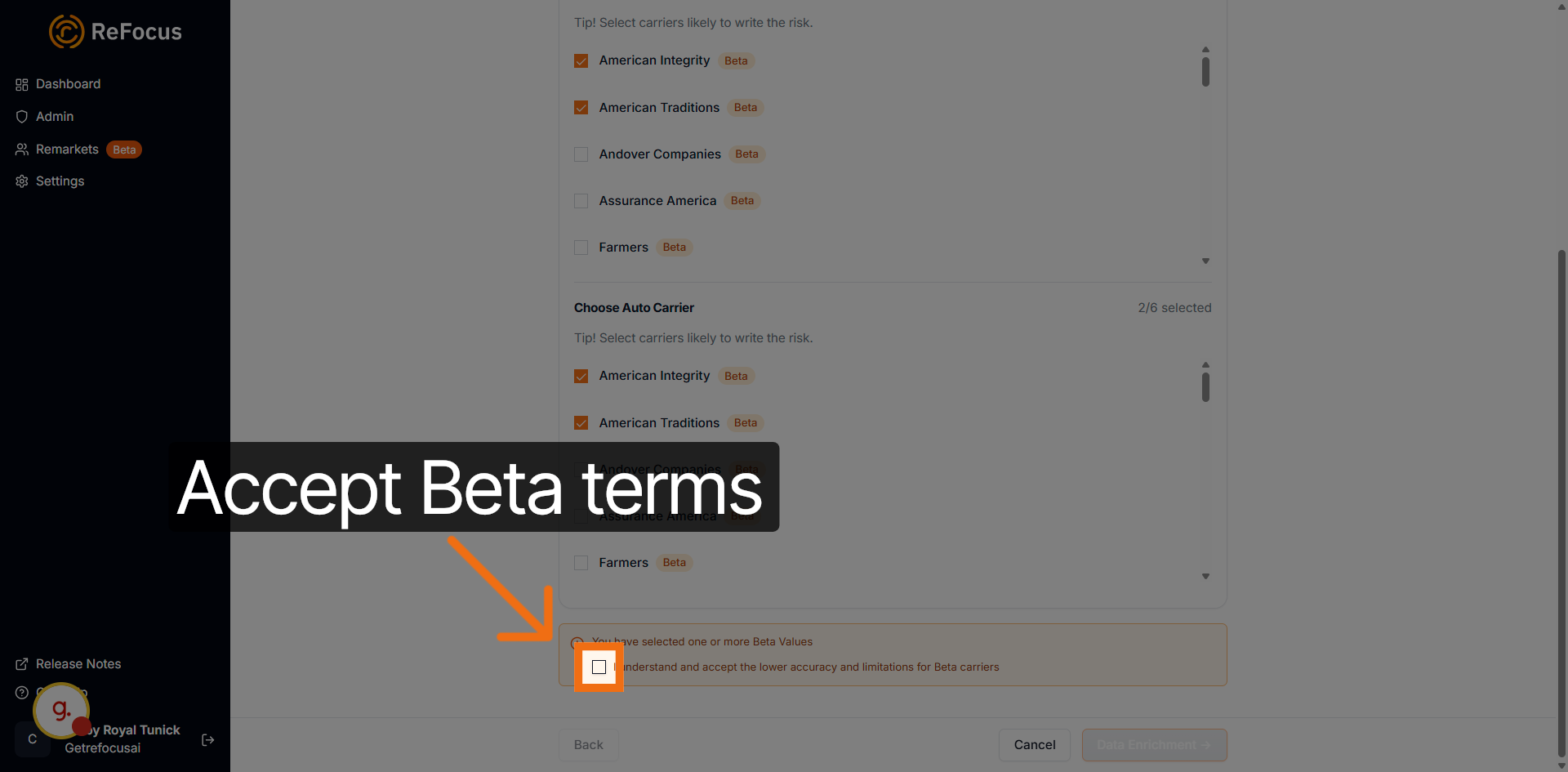
00:53: If any of the carriers you selected are Beta, select the checkbox to acknowledge
00:56: this.
00:58: Beta carriers are safe and recommended to use;
01:01: they may occasionally encounter a website navigation issue.
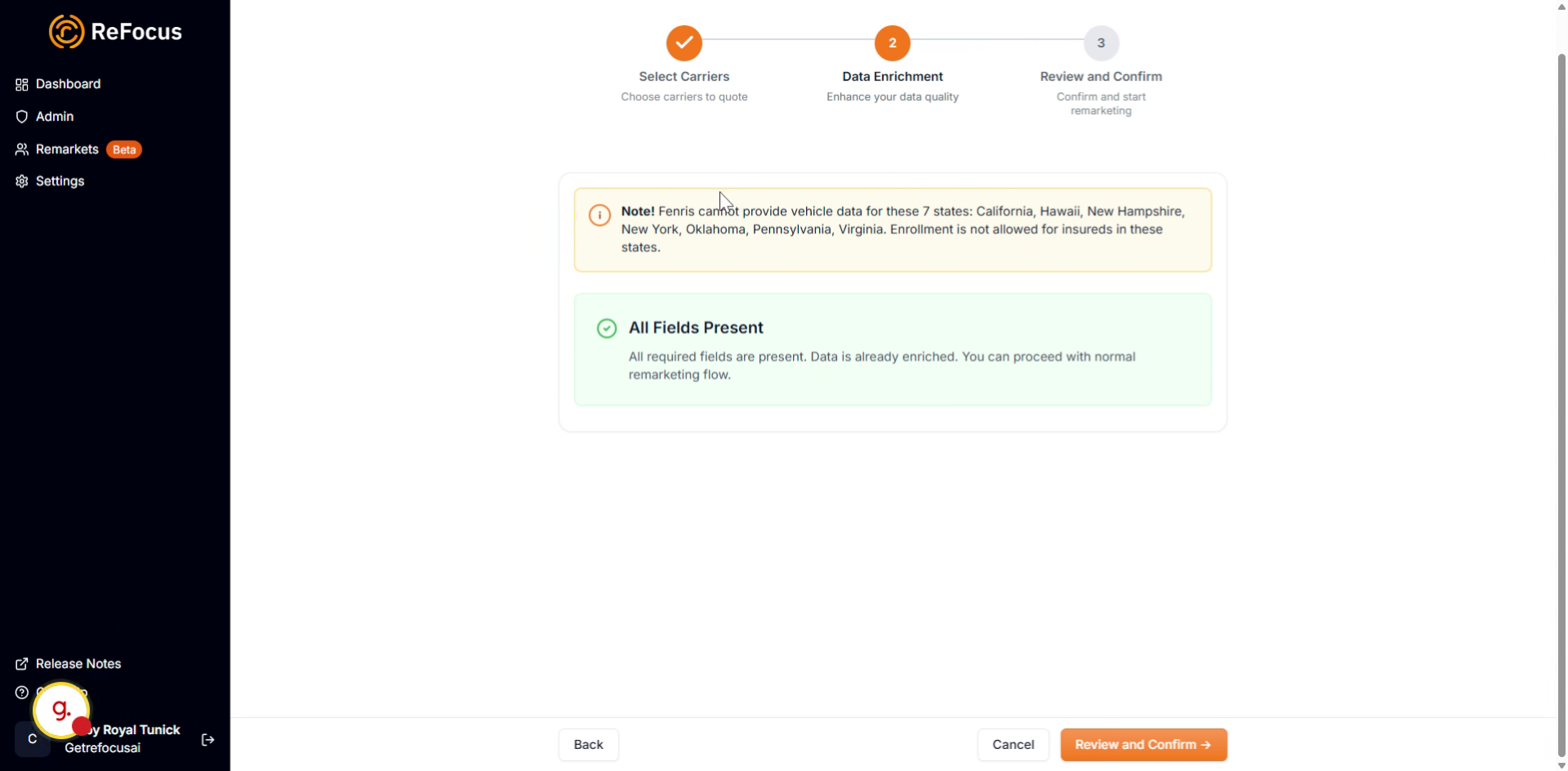
01:05: Click Data Enrichment → to continue to the data enrichment step.
01:09: If data enrichment has not been run or is needed, you will see all of the fields
01:14: that are eligible for data enrichment here.
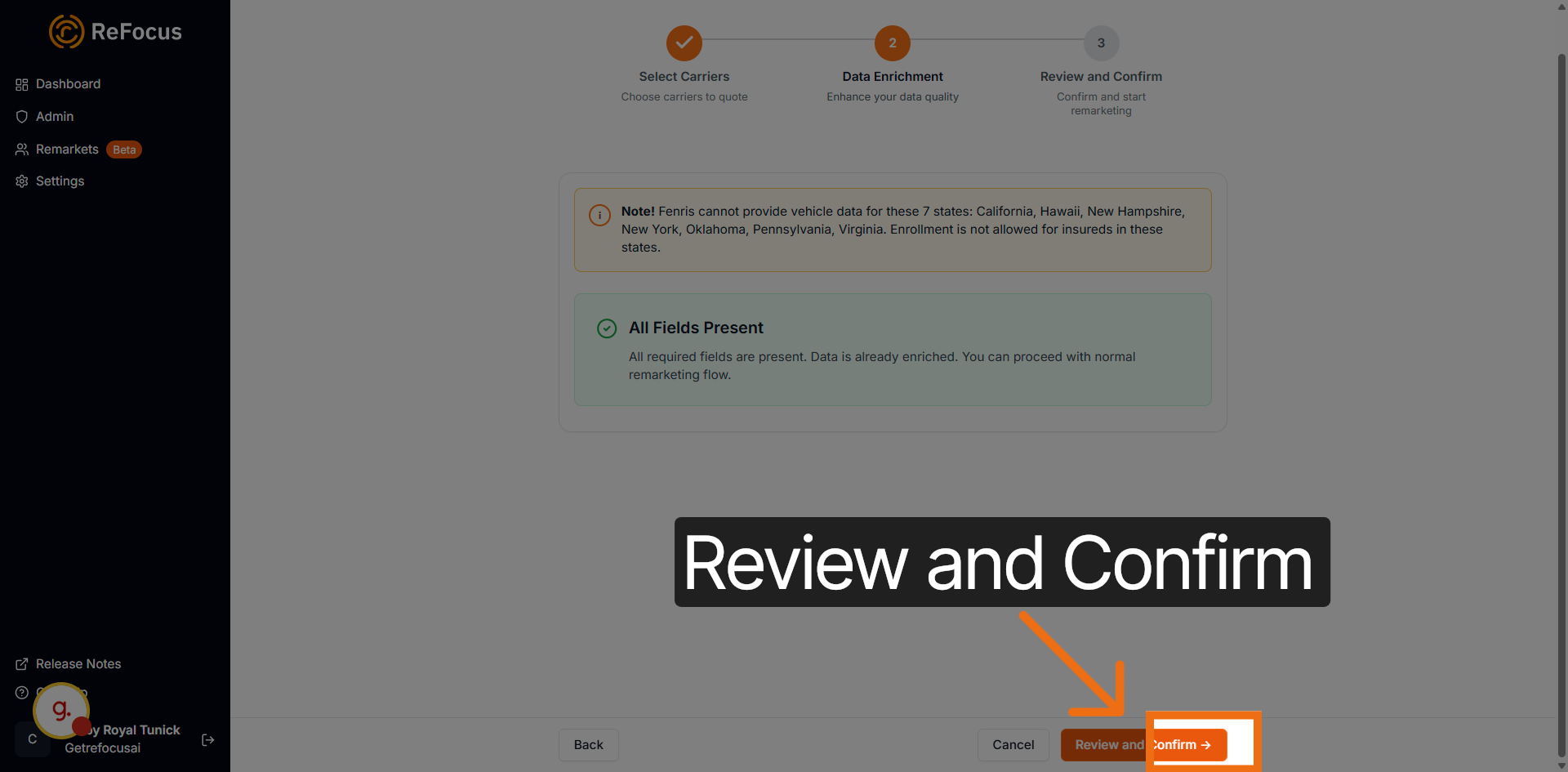
01:18: Click Review and Confirm → to proceed to the final review of your data.
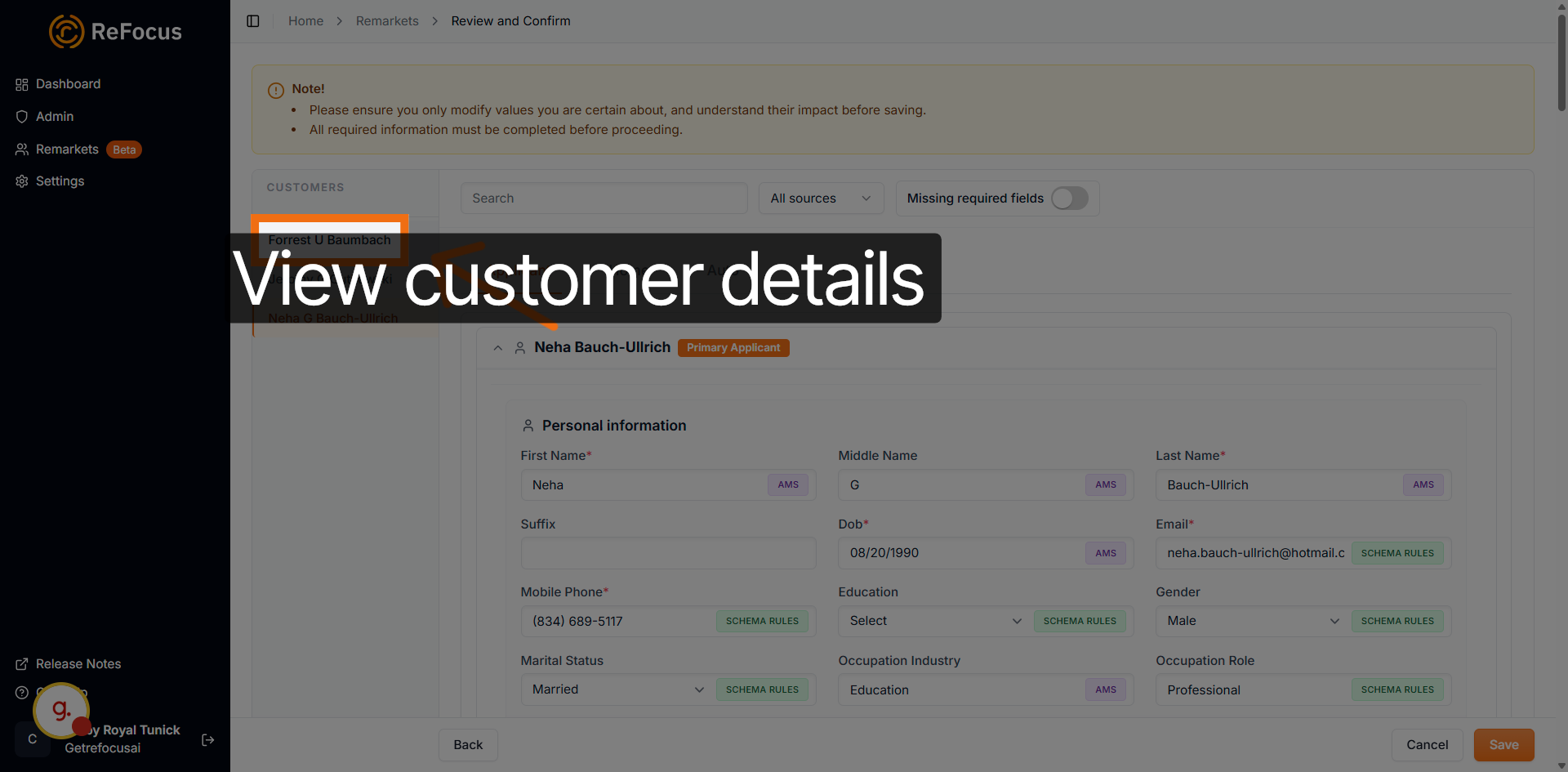
01:24: On the final review screen you can see all of your customers by name and all their
01:28: lines of business.
01:31: You can view each customer you have selected for remarketing in the left-hand pane.
01:36: Any warnings or alerts will be shown at the top of the screen.
01:40: Click Applicant to access the applicant information, such as Date of Birth and
01:44: Address, for all applicants on the account.
01:47: You can switch the primary applicant or exclude an applicant.
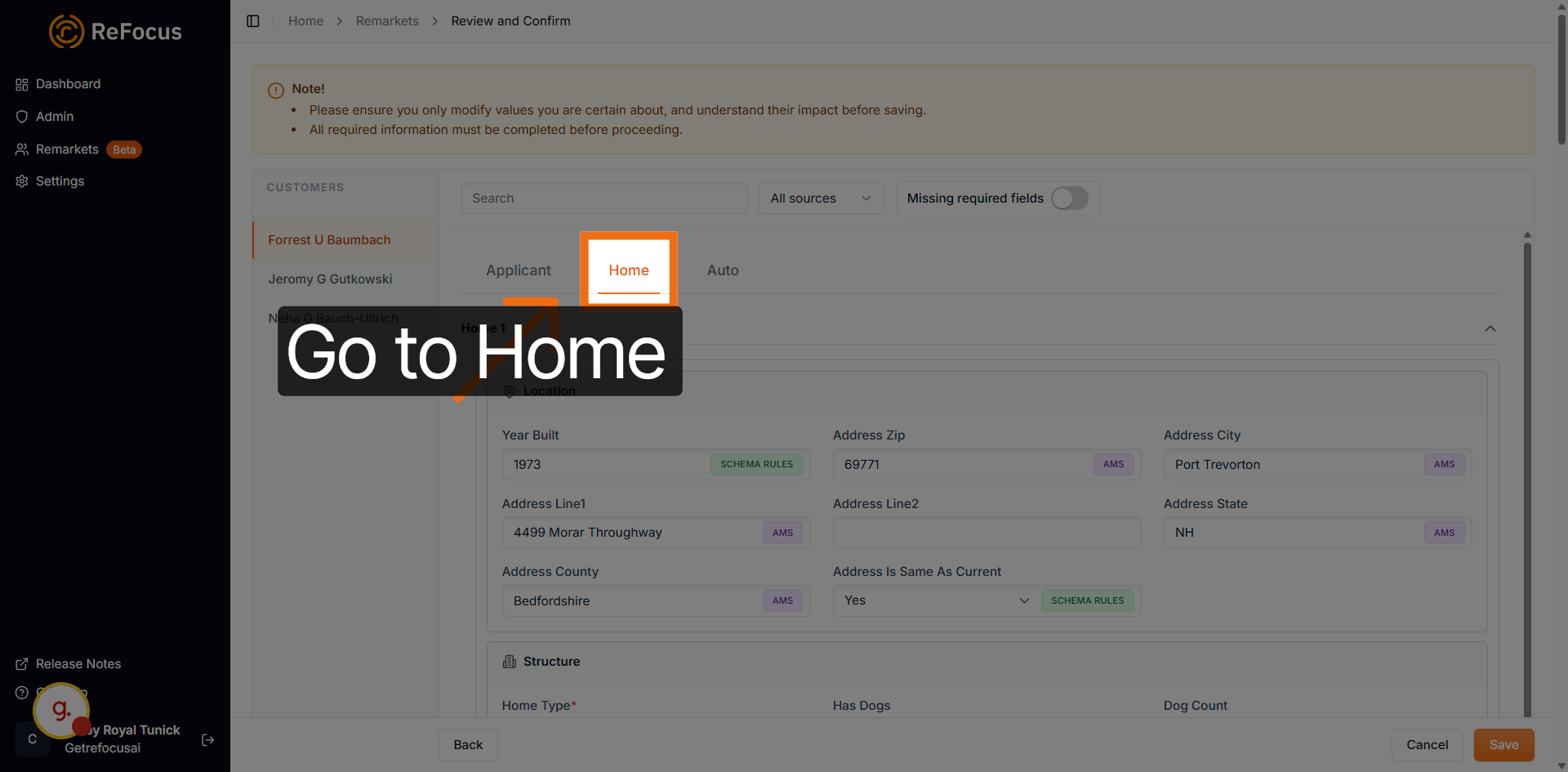
01:53: You can easily view Line of Business Data under the corresponding tab.
01:58: Only the Lines of Business that you selected for each account will show here.
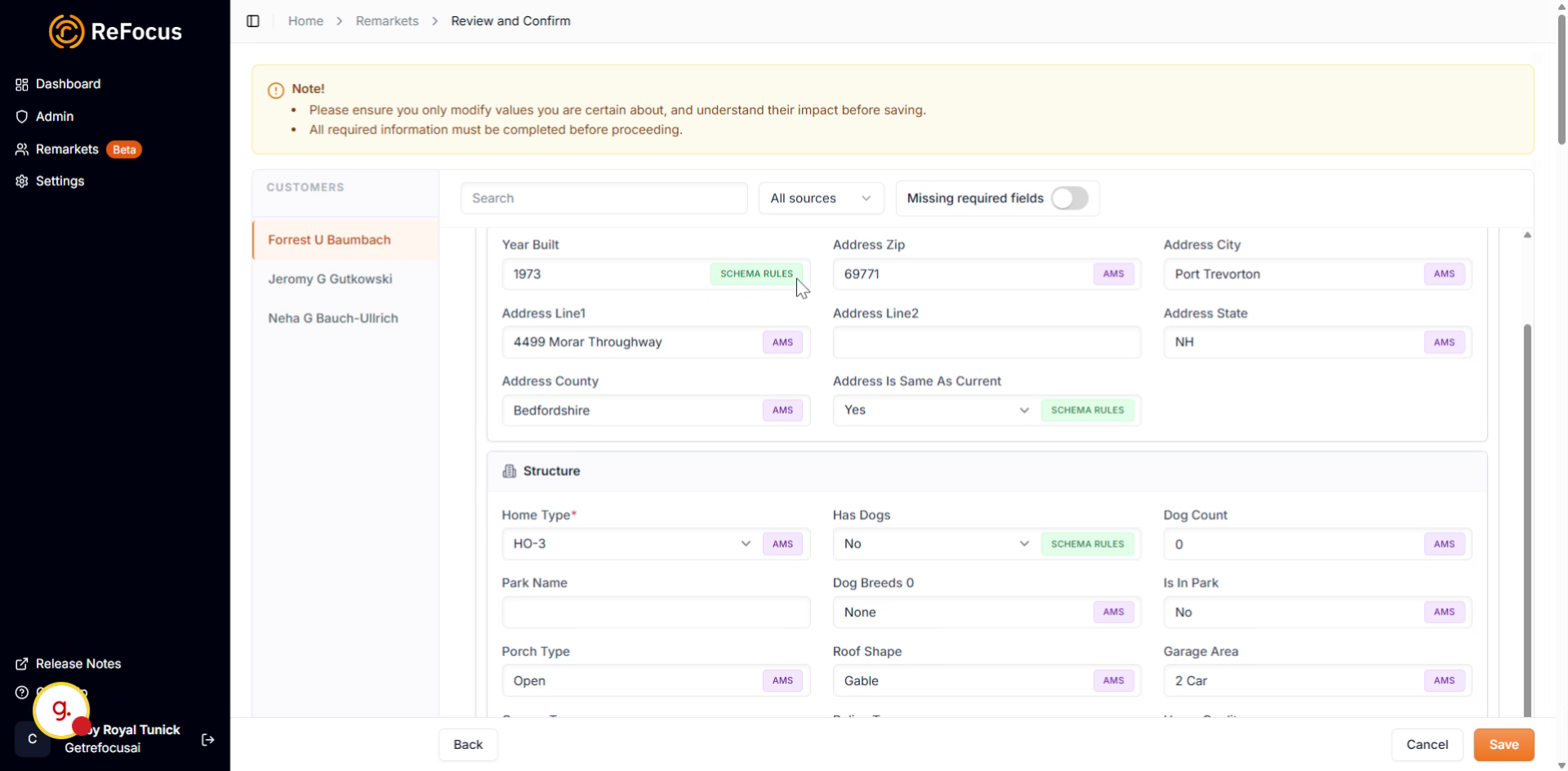
02:03: If you adjust data, you'll see a manual tag automatically added.
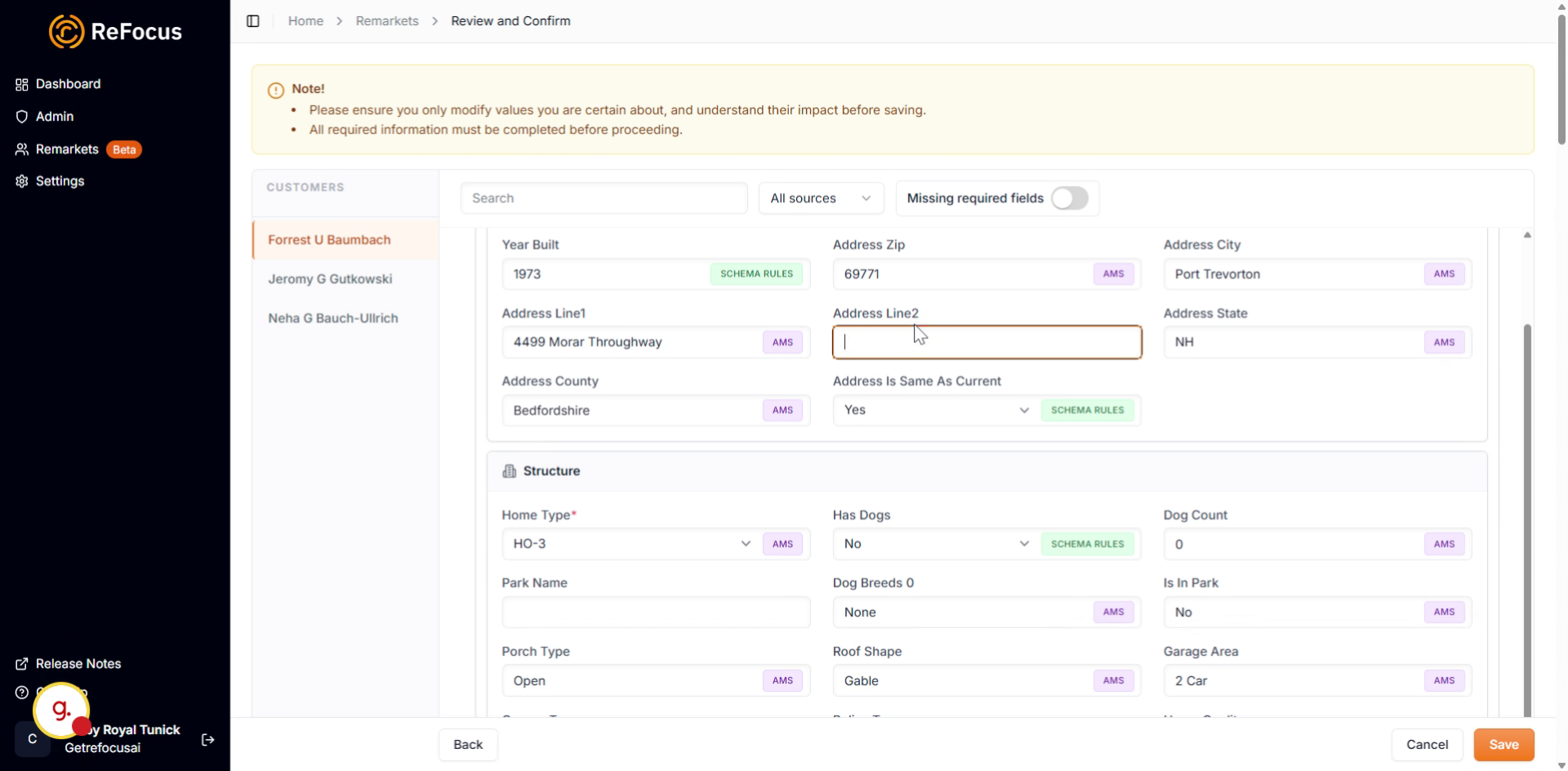
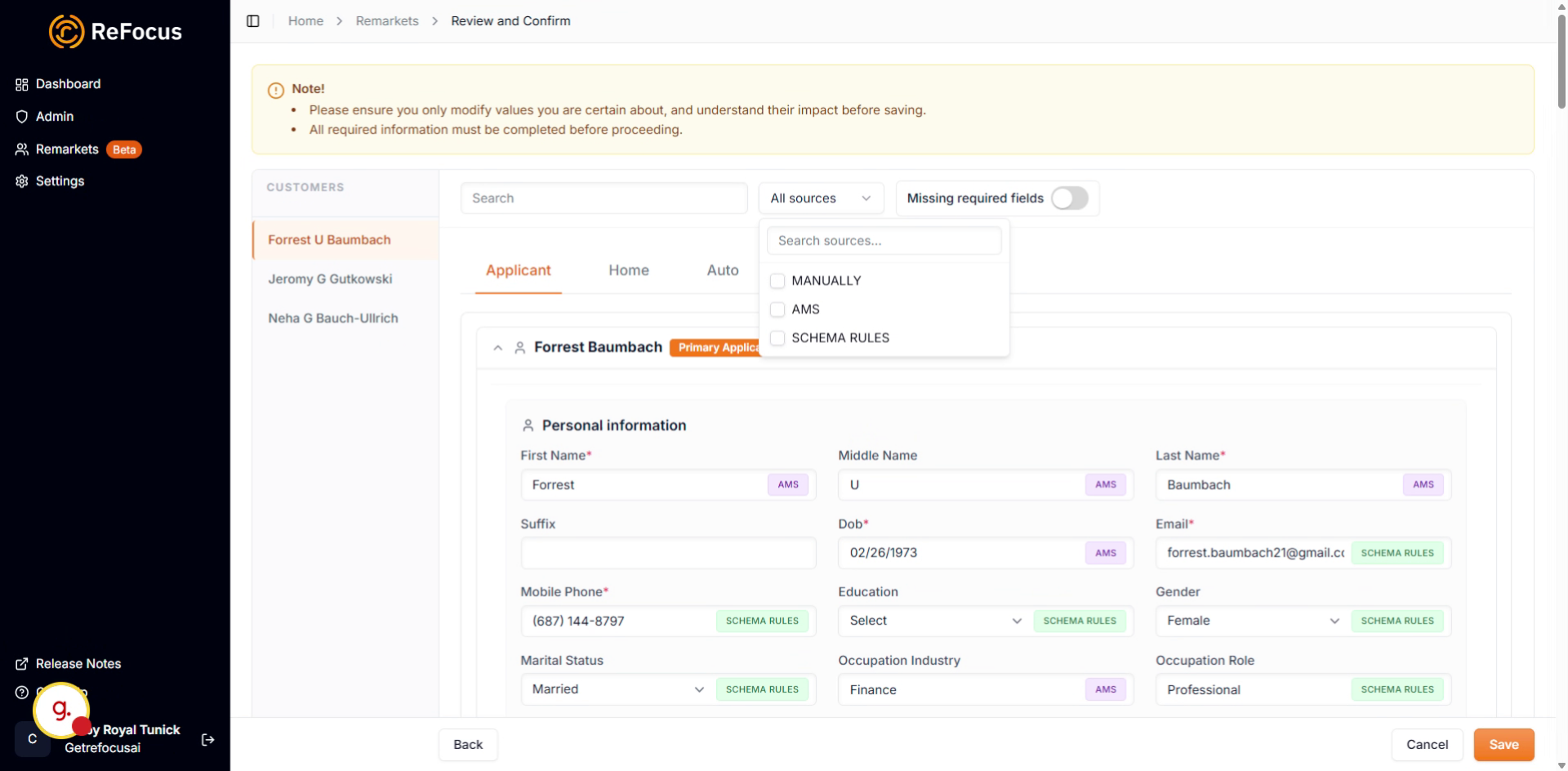
02:11: In case of any missing data, you can toggle all missing required fields.
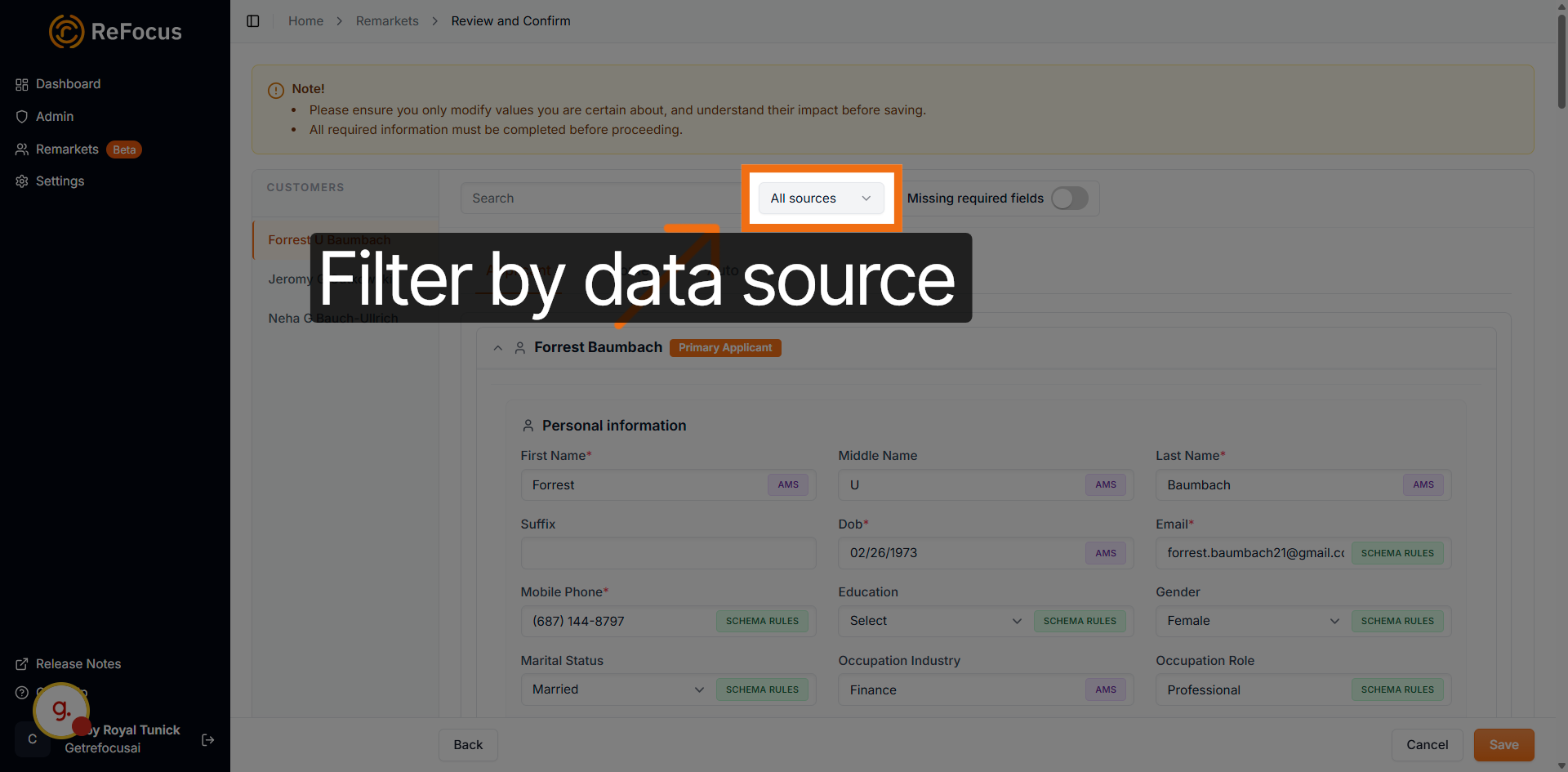
02:15: Click Filter by data source to narrow down the data shown based on its origin.
02:20: Click Save on the bottom right to save any changes made to the insured's data.
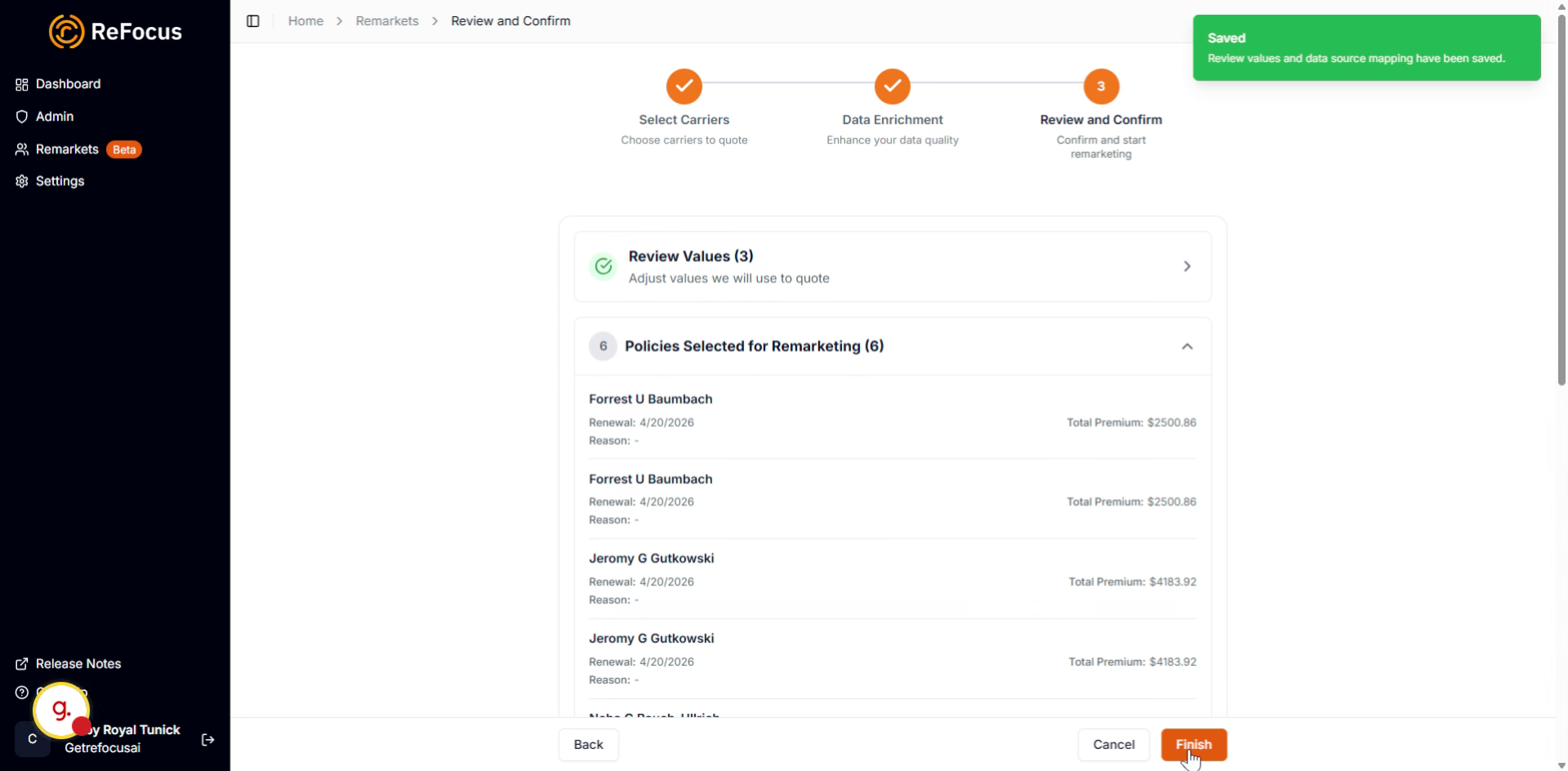
02:25: Select finish to start.
02:27: This will start the remarkets.
02:29: This article guided you through starting and completing a remarketing process,
02:32: including selecting customers, choosing carriers, enriching data, and finalizing the
02:38: remarketing. For more information, explore related articles on data enrichment and
02:43: carrier setup on our knowledge base.
Go to app.refocusai.com
Start the Remarketing Process
Let's learn how to start a remarket.
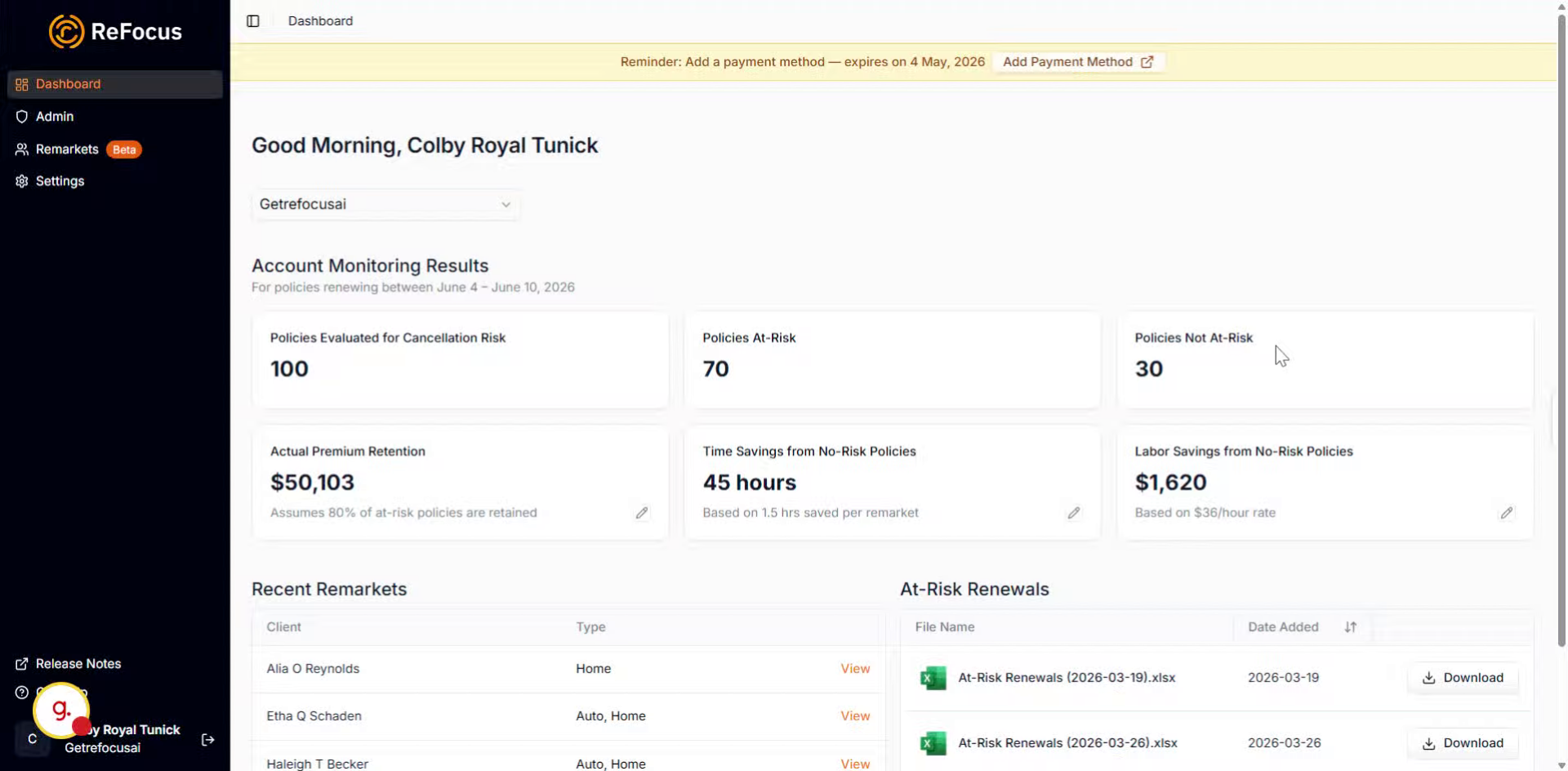
Access Upcoming Renewals Tab
Go to the Remarkets tab. Go to Upcoming Renewals, where you can see all renewals in the next 60 days.
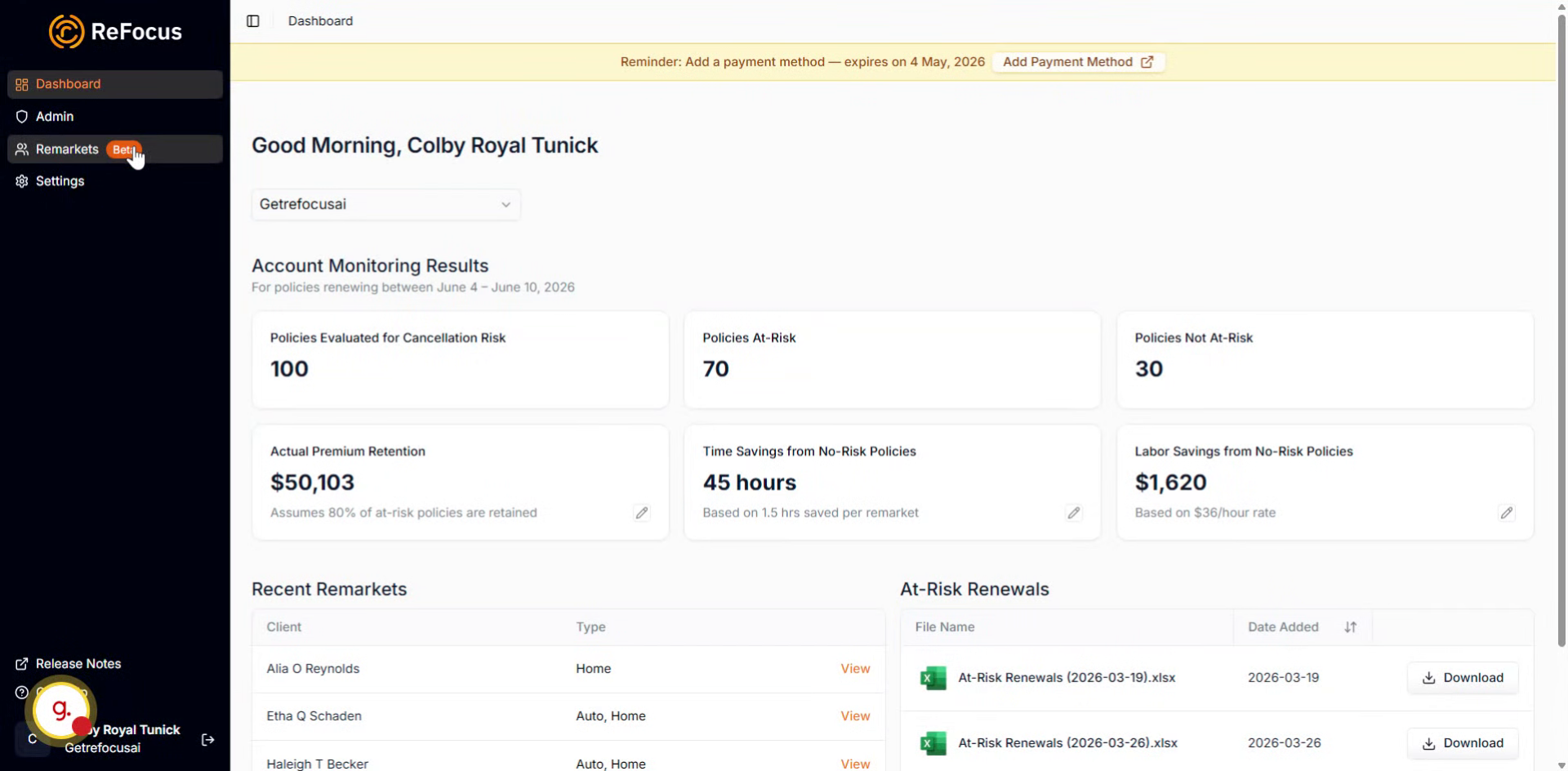
Select Customers And Policies
Find a customer you want to remarket. In order to see which policies are on the account, you can open the dropdown next to the name and either select one or all of the supported policy types on the account. Multiple customers can be selected for remarketing at once.

Start Remarketing And Choose Carriers
Go to Start Remarket button on the bottom right.
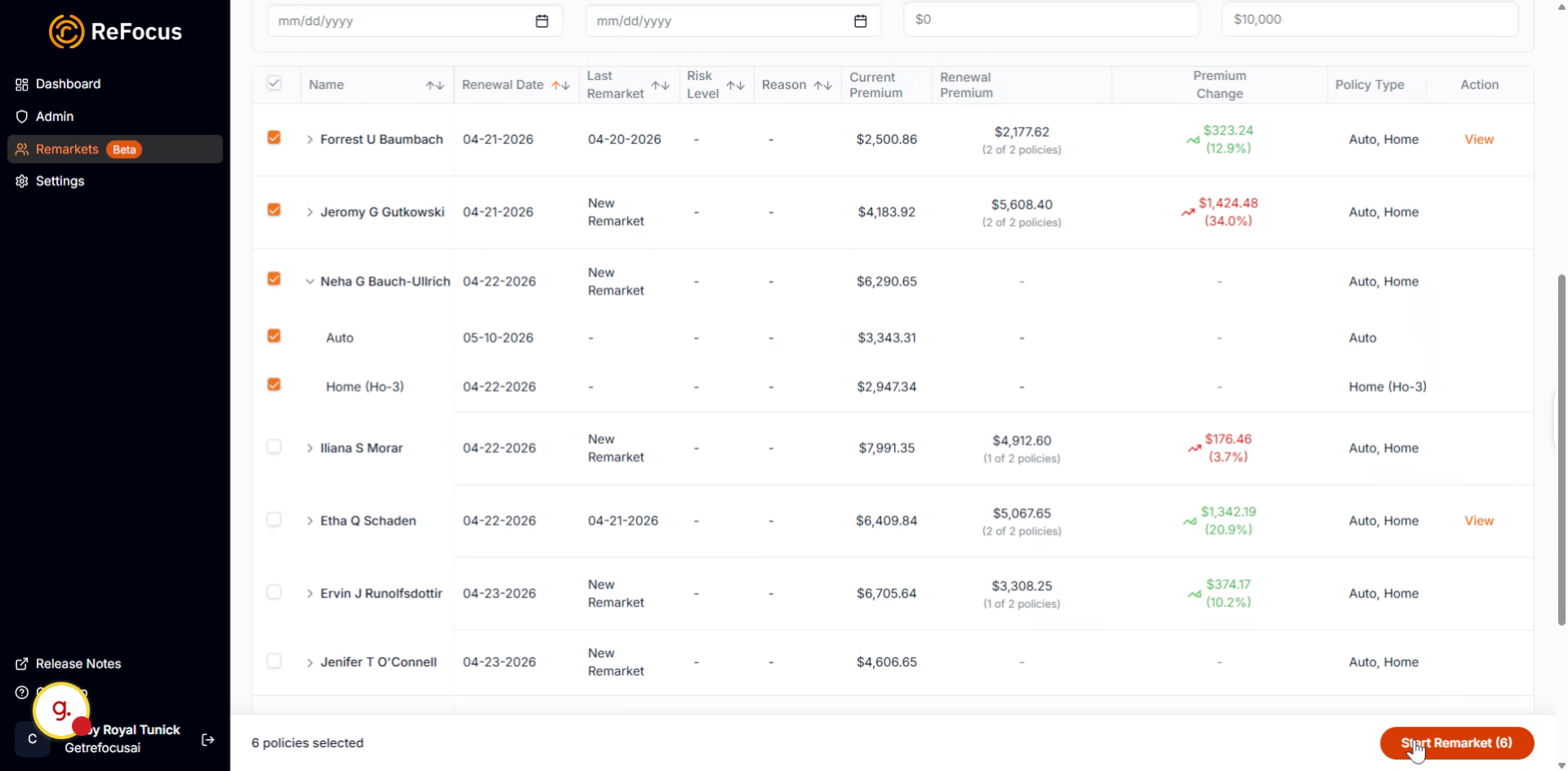
Select Carriers for Remarketing
From here, choose the carriers you'd like to use. Select the checkbox next to each carrier you want to remarket with.
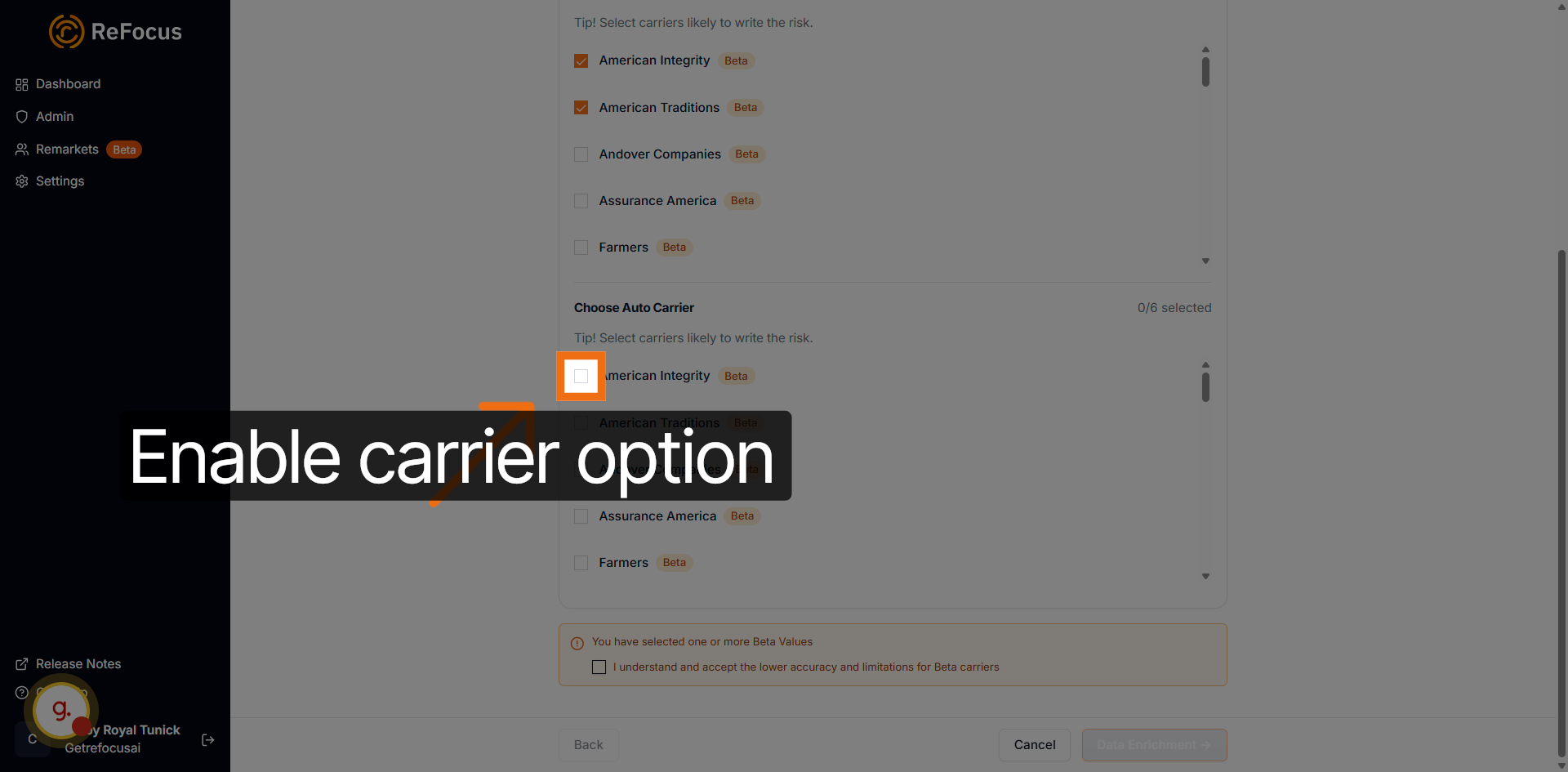
Using Beta Carriers
Beta carriers are safe and recommended for use in remarketing. They may occasionally run into a navigation issue, which is why they are marked as 'Beta.'
Proceed To Data Enrichment
Click Data Enrichment → to continue to the data enrichment step.

View Data Enrichment Eligibility
If data enrichment has not been run or is needed, you will see all of the fields that are eligible for data enrichment here.
Review And Confirm Data
Click Review and Confirm → to proceed to the final review of your data.
Review Customer Overview
On the final review screen, you can see all of your customers by name and all their lines of business.
Click on a customer to view detailed information for this account.
Navigate To Each Line of Business
Click on any Line of Business to view information specific to that policy.
Manage Applicants
You're able to switch the primary applicant or exclude an applicant by clicking on Actions.

Manual Data Adjustment Tagging
If you adjust data, you'll see a manual tag automatically added.
Toggle Missing Required Data
If any required fields are missing, you can toggle the Missing Required Fields filter to see them.
Filter By Data Source
Click Filter by data source to narrow the data shown by its origin.
Search Data Sources And Save
You can also search for data sources. Once finished, click Save on the bottom right to finalize the data that will be used in remarketing.
Complete Remarketing Process
Select finish to start remarkets.
This article guided you through starting and completing a remarketing process, including selecting customers, choosing carriers, enriching data, and finalizing the remarket. For more information, explore related articles on data enrichment and customer management.