---
title: How to Use the Bridge Browser Extension
description: Use Bridge by ReFocus to quickly search for customer information, review available data, enrich missing details when enabled, and fill matching fields on carrier quote forms. Bridge is carrier- and line-of-business-agnostic, helping reduce manual data entry and speed up quoting while keeping agency users in control.
---
[Skip to content](https://knowledge.refocusai.com/use-bridge-browser-extension#main-content)
[More support](https://knowledge.refocusai.com/kb-tickets/new?hsLang=en) [Customer portal](https://knowledge.refocusai.com/support?hsLang=en)

- [ReFocus AI Website](https://refocusai.com)
- [Blog](https://blog.refocusai.com)
Open main navigation
Close main navigation
- [ReFocus AI Website](https://refocusai.com)
- [Blog](https://blog.refocusai.com)
- [More support](https://knowledge.refocusai.com/kb-tickets/new)
- [Customer portal](https://knowledge.refocusai.com/support)
How can we help you?
- There are no suggestions because the search field is empty.
1. [Knowledge Center](https://knowledge.refocusai.com/?hsLang=en)
2. [Onboarding](https://knowledge.refocusai.com/onboarding?hsLang=en)
3. [Installing & Using Bridge (Browser Extension)](https://knowledge.refocusai.com/onboarding?hsLang=en#installing-using-bridge-browser-extension)
May 5, 2026
# How to Use the Bridge Browser Extension
## Bridge by ReFocus helps you use customer and policy information from ReFocus while completing carrier quote forms. Once you are logged in, Bridge can search for a customer, show available data, and fill supported fields on the active carrier page.
💡**Before you begin:** Bridge must already be installed in your browser. For installation steps, see the related article: [**Install the Bridge Browser Extension**](https://knowledge.refocusai.com/install-bridge-browser-extension?hsLang=en).
### What Bridge does
Bridge helps reduce manual data entry when working in carrier portals by using information already available in ReFocus.
With Bridge, you can:
- Search for a customer
- View available customer, policy, driver, vehicle, and property information
- Enrich missing or incomplete data, if enabled for your agency
- Fill available fields into the carrier form
- Review the carrier form before continuing the quote workflow
Bridge is designed to be used **after you are already on a carrier quote form**.
---
#### Step 1: Open the carrier quote form
Start by opening the carrier website and navigating to the quote form you want to complete.
Bridge is carrier-agnostic, so it can be used across carrier sites. The exact form layout, required fields, and workflow may vary by carrier.
---
#### Step 2: Open Bridge
Click the **Bridge by ReFocus** extension from your browser.
Depending on your browser setup, Bridge may open as a side panel or extension window next to the carrier page.
---
#### Step 3: Sign in
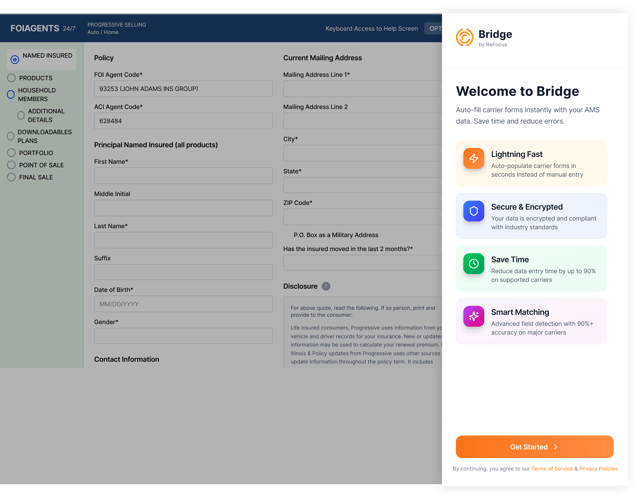
Click **Sign In**.
Use the login method provided by your agency.
After signing in, Bridge will connect to your ReFocus account.
📒**Note:** Most users will only have access to one organization. When that is the case, your organization will be selected automatically.
---
#### Step 4: Search for the customer
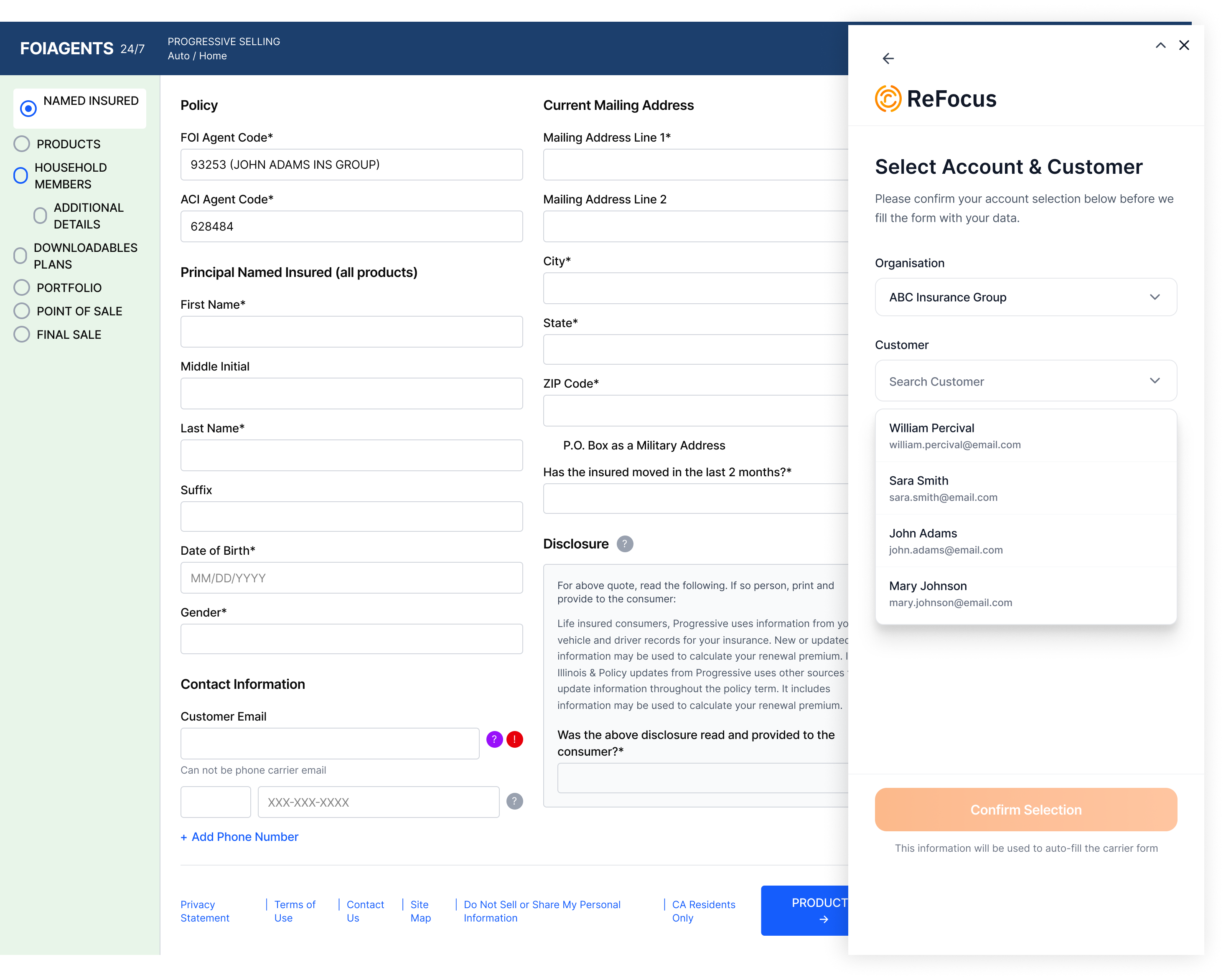
Use the customer search field to find the insured or account you are working on.
Search by the information your team commonly uses, such as:
- Customer name
- Account name
- Email
- Policy-related details, when available
Select the correct customer from the results.
---
#### Step 5: Review the available data
After selecting a customer, Bridge will show the information available for that account.
The exact data shown may vary based on what is available in ReFocus and the agency’s connected systems.
You may see sections such as:
- **Customer information**
- **Policy information**
- **Driver information**
- **Vehicle information**
- **Property information**
- **Coverage or quote-related details**
Bridge may also show whether certain data is available, missing, or incomplete.
If your agency has **Data Enrichment** enabled, you may also have the option to enrich missing or incomplete information before filling the carrier form. Data Enrichment can help supplement available customer, property, vehicle, or policy-related details when additional information is needed for the quote workflow.
📒**Note:** Data Enrichment availability depends on your agency’s ReFocus setup and the type of information being requested.
This review step is helpful because carrier forms are not always identical, and not every account will have every field available. Use this step to confirm the data looks correct, identify anything that may need to be enriched or manually completed, and decide whether you are ready to fill the carrier form.
---
#### Step 6: Fill the carrier form
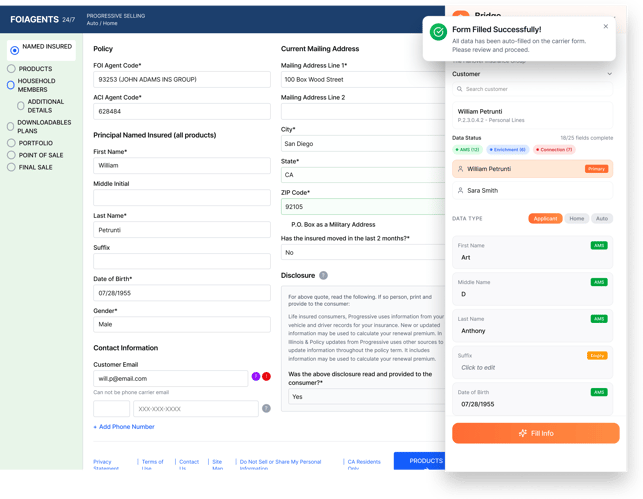
When you are ready, click **Fill Info**.
Bridge will attempt to fill matching fields on the active carrier page using the data available from ReFocus.
Bridge may only fill fields where:
- Matching data is available
- The carrier form has a compatible field
- The field is visible and ready to be completed
- The information can be matched with enough confidence
After the fill action runs, review the carrier form before continuing.
💡**Important:** Always review the carrier form before submitting or moving to the next step. Bridge helps speed up data entry, but the user is still responsible for confirming the information is accurate on the carrier site.
---
#### Step 7: Continue the quote workflow
Once the carrier form is reviewed, continue through the carrier’s normal quoting process.
Bridge does not replace the carrier’s required workflow. It helps reduce manual entry so your team can move faster while still staying in control.
---
### Troubleshooting
#### I do not see Bridge in my browser
Confirm the extension has been installed.
If Bridge was installed but does not appear, check whether it is hidden behind your browser’s extension menu. You may need to pin it for easier access.
If you are unable to access or enable the extension, contact your internal admin first. Some companies require an IT admin to approve browser extensions.
---
#### Bridge asks me to log in again
You may be asked to log in again if your session expires or if your browser clears session data.
Open Bridge and sign in using your agency’s normal login method.
---
#### I cannot find the customer
Confirm you are searching for the correct customer or account.
If the customer still does not appear, the account may not be available in ReFocus yet, or your user permissions may not include access to that customer.
Contact your ReFocus admin or Customer Success Manager if you believe the customer should be available.
---
#### Some information is missing
Bridge can only show and fill information that is available in ReFocus.
Missing information may mean the data is not present, has not synced yet, or is not available for that customer, policy, or line of business.
If your agency has Data Enrichment enabled, you may be able to enrich certain missing information before filling the carrier form.
Review the carrier form and manually complete any remaining fields as needed.
---
#### Fields did not fill as expected
Carrier pages can vary, and some fields may not be available, visible, or compatible at the time Bridge runs.
Try the following:
1. Confirm you are on the correct carrier quote form.
2. Make sure the page is fully loaded.
3. Select the customer again in Bridge.
4. Click **Fill Info** again.
5. Review and manually complete any fields that did not fill.
If the issue continues, contact your ReFocus Customer Success Manager with the carrier name, customer, and a brief description of what did not fill as expected.
---
### Best practices
- Open Bridge after you are already on the carrier quote form.
- Search for and confirm the correct customer before filling.
- Review available data before clicking **Fill Info**.
- Use Data Enrichment, if enabled, when additional information is needed.
- Always review the carrier form after Bridge fills information.
- Manually complete any missing or carrier-specific fields before submitting.
---
### Summary
Bridge helps agency teams complete carrier quote forms faster by using customer and policy information already available in ReFocus.
Use Bridge to select the customer, review available data, enrich missing information when available, fill matching carrier fields, and confirm the information before continuing through the carrier workflow.
- [Onboarding](https://knowledge.refocusai.com/onboarding?hsLang=en#main-content)
- [Start Here](https://knowledge.refocusai.com/onboarding?hsLang=en#start-here)
- [Set up Carrier Access & MFA Forwarding](https://knowledge.refocusai.com/onboarding?hsLang=en#set-up-carrier-access-mfa-forwarding)
- [Account Monitoring](https://knowledge.refocusai.com/onboarding?hsLang=en#account-monitoring)
- [Remarketing](https://knowledge.refocusai.com/onboarding?hsLang=en#remarketing)
- [Data Enrichment](https://knowledge.refocusai.com/onboarding?hsLang=en#data-enrichment)
- [Risk Engineering](https://knowledge.refocusai.com/onboarding?hsLang=en#risk-engineering)
- [Installing & Using Bridge (Browser Extension)](https://knowledge.refocusai.com/onboarding?hsLang=en#installing-using-bridge-browser-extension)
- [Renewal Hub](https://knowledge.refocusai.com/onboarding?hsLang=en#renewal-hub)
- [User Access and Permissions](https://knowledge.refocusai.com/onboarding?hsLang=en#user-access-and-permissions)
- [Integrations](https://knowledge.refocusai.com/integrations?hsLang=en#main-content)
- [General](https://knowledge.refocusai.com/integrations?hsLang=en#general)
- [Jetfile](https://knowledge.refocusai.com/integrations?hsLang=en#jetfile)
- [AgencyZoom](https://knowledge.refocusai.com/integrations?hsLang=en#agencyzoom)
- [AMS360](https://knowledge.refocusai.com/integrations?hsLang=en#ams360)
- [EZLynx](https://knowledge.refocusai.com/integrations?hsLang=en#ezlynx)
- [Hawksoft](https://knowledge.refocusai.com/integrations?hsLang=en#hawksoft)
- [Salesforce](https://knowledge.refocusai.com/integrations?hsLang=en#salesforce)
- [Applied Epic](https://knowledge.refocusai.com/integrations?hsLang=en#applied-epic)
- [QQ Catalyst](https://knowledge.refocusai.com/integrations?hsLang=en#qq-catalyst)
- [MomentumAMP](https://knowledge.refocusai.com/integrations?hsLang=en#momentumamp)
- [Best Practices Guide](https://knowledge.refocusai.com/best-practices-guide?hsLang=en)
- [Release Notes](https://knowledge.refocusai.com/release-notes?hsLang=en#main-content)
- [2025](https://knowledge.refocusai.com/release-notes?hsLang=en#2025)
- [2026](https://knowledge.refocusai.com/release-notes?hsLang=en#2026)
- [Product Roadmap](https://knowledge.refocusai.com/release-notes?hsLang=en#product-roadmap)
[](http://refocusai.com)
[mailto:support@refocusai.com](mailto:support@refocusai.com)
Copyright © 2025, ReFocus AI Inc.