
Overview
Some insurance carriers send Multi-Factor Authentication (MFA) codes via email when IntelliAgent logs into their portals on your behalf.
For IntelliAgent to complete these logins automatically, your agency’s IT department must set up email forwarding so MFA messages reach ReFocus AI’s secure mailbox.
This article explains how your IT team can identify the carrier MFA senders and configure forwarding rules in Microsoft 365, Exchange, or Outlook.
💡For instructions on setting up MFA forwarding for Google Workspace (Gmail), see the Google Workspace instructions here.
Who Should Use This Guide
This guide is intended for agency IT administrators or technical contacts who manage the agency’s email system (e.g., Microsoft 365 Exchange, Outlook, or Outlook).
💡For non-technical staff, check out this article on adding ReFocus to your carriers.
Why This Setup Matters
By automatically forwarding MFA messages to ReFocus AI, IntelliAgent securely receives the code and continues the remarketing process without manual steps or delays.
Step 1: Identify Carrier MFA Sender Addresses
Your IT team should collect the email addresses carriers use to send MFA codes.
Here are some examples:
-
Safeco:
noreply@mfa.safeco.com -
Travelers:
donotreply@travelers.com -
Progressive:
security@progressive.com
Tip: Review recent MFA emails in your agency inbox or trigger a test login to confirm the sender address for each carrier.
Step 2: Obtain Your ReFocus AI Forwarding Address
ReFocus AI assigns a unique forwarding address to each agency. To locate this address, navigate to Settings ➡️ Carriers ➡️ and select any available carrier. You will see the forwarding address displayed as follows:
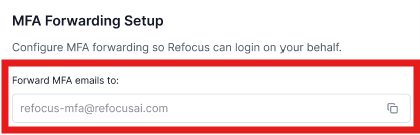
This is the secure mailbox IntelliAgent uses to process MFA codes for your agency.
💡A single, dedicated forwarding address is used for all carrier MFA messages at your agency.
Step 3a: Enable External Forwarding in Office 365
💡This step must be completed by someone with admin access in Office 365.
Step 3b: Create Forwarding Rules in Outlook
💡Using Outlook Online is recommended when setting up forwarding rules
For Microsoft 365 / Exchange
You can configure forwarding either at the organization level (recommended) or per mailbox.
Option A: Outlook Online (Per User)
-
In Outlook, go to Rules → Manage Rules & Alerts → New Rule.
-
Condition: From people or public group, and add carrier MFA senders.
-
Action: Forward it to people or public group, and add your ReFocus AI forwarding address.
-
Save and apply.
Option B: Exchange Admin Center (Recommended)
-
Sign in to the Exchange Admin Center.
-
Go to Mail Flow → Rules → Add Rule.
-
Name the rule, e.g., Forward Carrier MFA Emails to ReFocus AI.
-
Set the condition: If the sender’s address includes... and add the carrier sender addresses.
-
Under Do the following, select Redirect the message to → youragency-mfa@refocusai.com.
-
Save and enable the rule.
💡If multiple staff members will use their individual credentials, your IT team must configure the external forwarding rule for each of those users' mailboxes.
Step 4: Test the Setup
-
Trigger a login that requests a carrier MFA code.
-
Verify that the MFA email is forwarded automatically to your ReFocus AI forwarding address by selecting the Verify Email button.

Step 5: Maintain and Update Regularly
-
Review forwarding rules anytime you add a new carrier.
-
Update the rules if a carrier changes its sender domain.
-
Revalidate forwarding after system upgrades or policy updates.
Security Notes
-
All MFA messages are processed securely by ReFocus AI and used only for authentication.
-
Do not forward unrelated emails to your ReFocus AI address.
-
Credentials and MFA codes are never stored beyond the authentication process.
Need Help?
If your IT team has completed these steps but IntelliAgent still isn’t receiving MFA codes:
-
Verify the carrier’s sender domain again.
-
Check if forwarding rules were applied correctly.
-
Contact ReFocus AI Support via your support portal or email at support@refocusai.com.